Before You Start: Consider whether your content works better as a native web page or blog post rather than a PDF. Native web content offers superior SEO, accessibility, and mobile readability.
For details, view our Document & Hyperlink Best Practices guide.
See Uploading and Hyperlinking a Document (NEW) for instructions using the New Editor.
Uploading and linking your document in the legacy editor
1. While in the Web Content Editor, select the text you’d like to add a hyperlink to or simply click the  icon to open the Link window.

2. Click Browse Server to launch the Resources Browser.
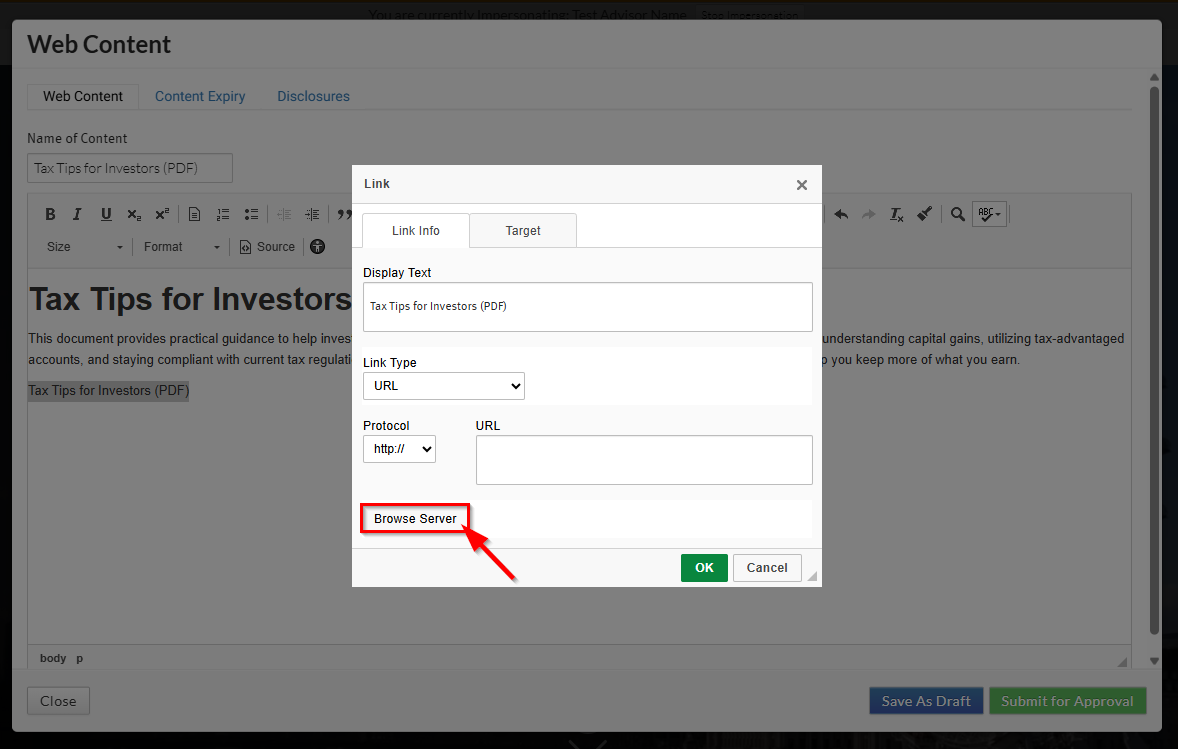
3. In the Resource Manager, navigate to the folder of the hub you are currently working on.
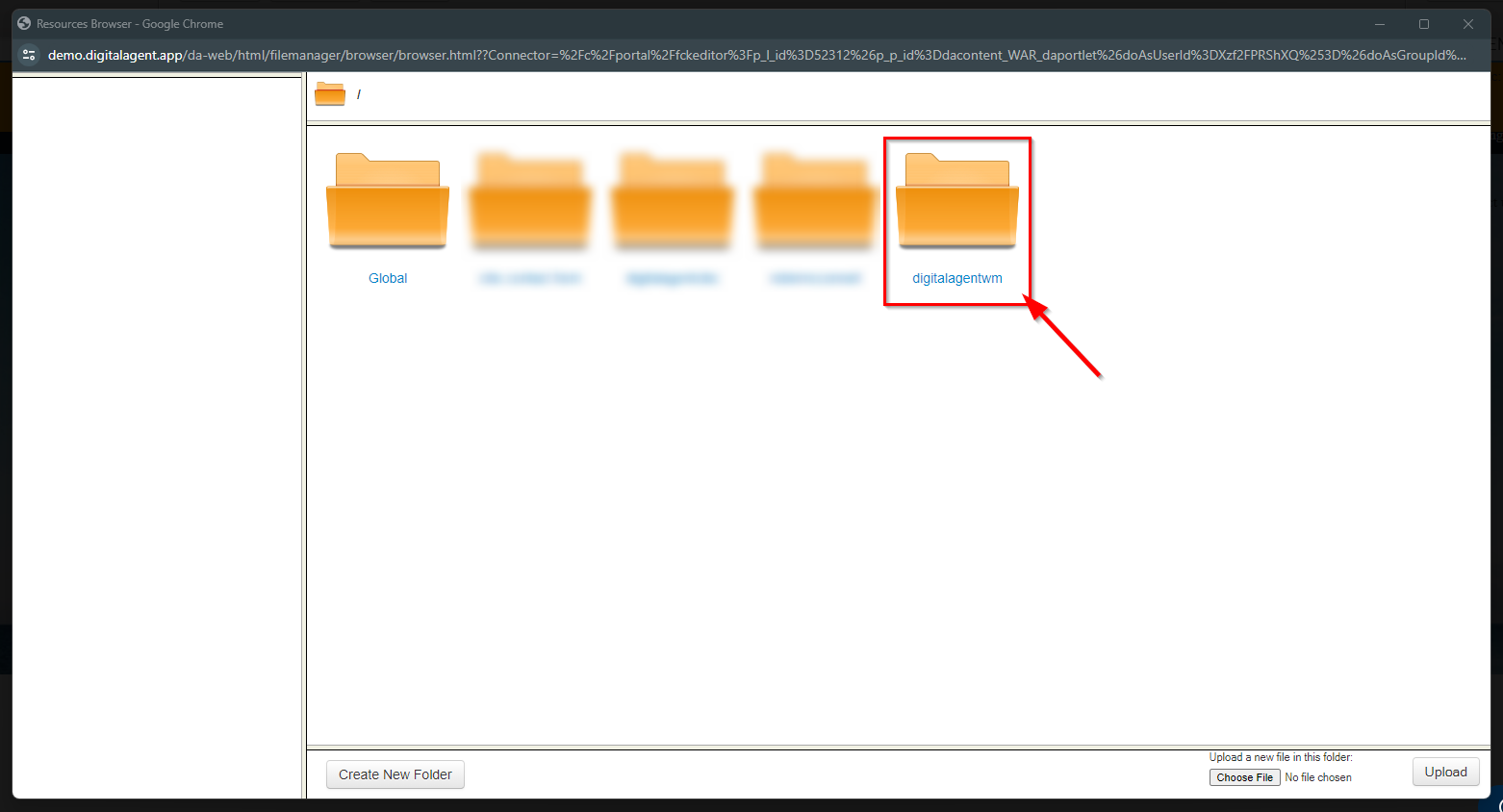
4. Select the PDF folder.
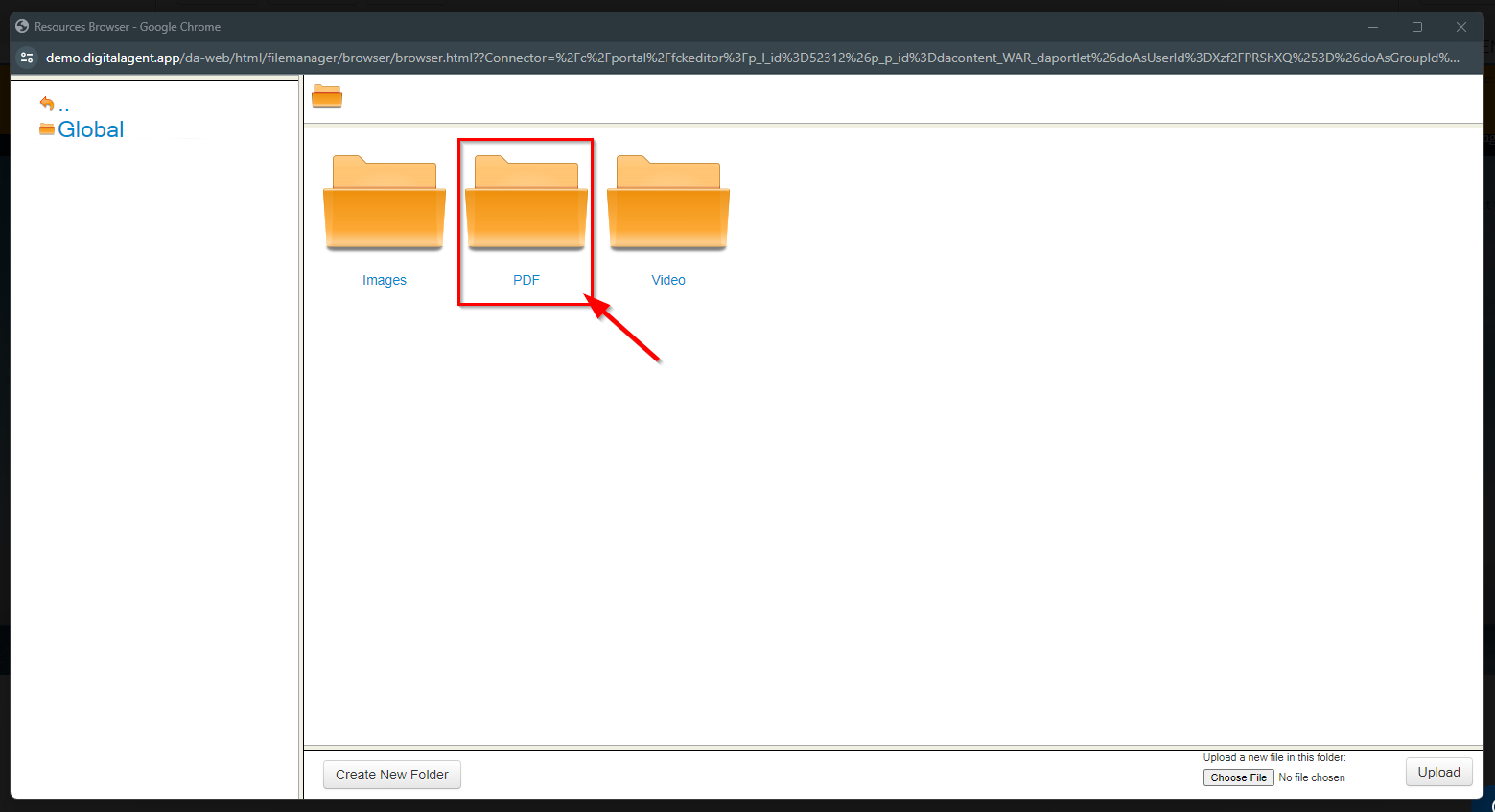
5. Click the Choose File button.
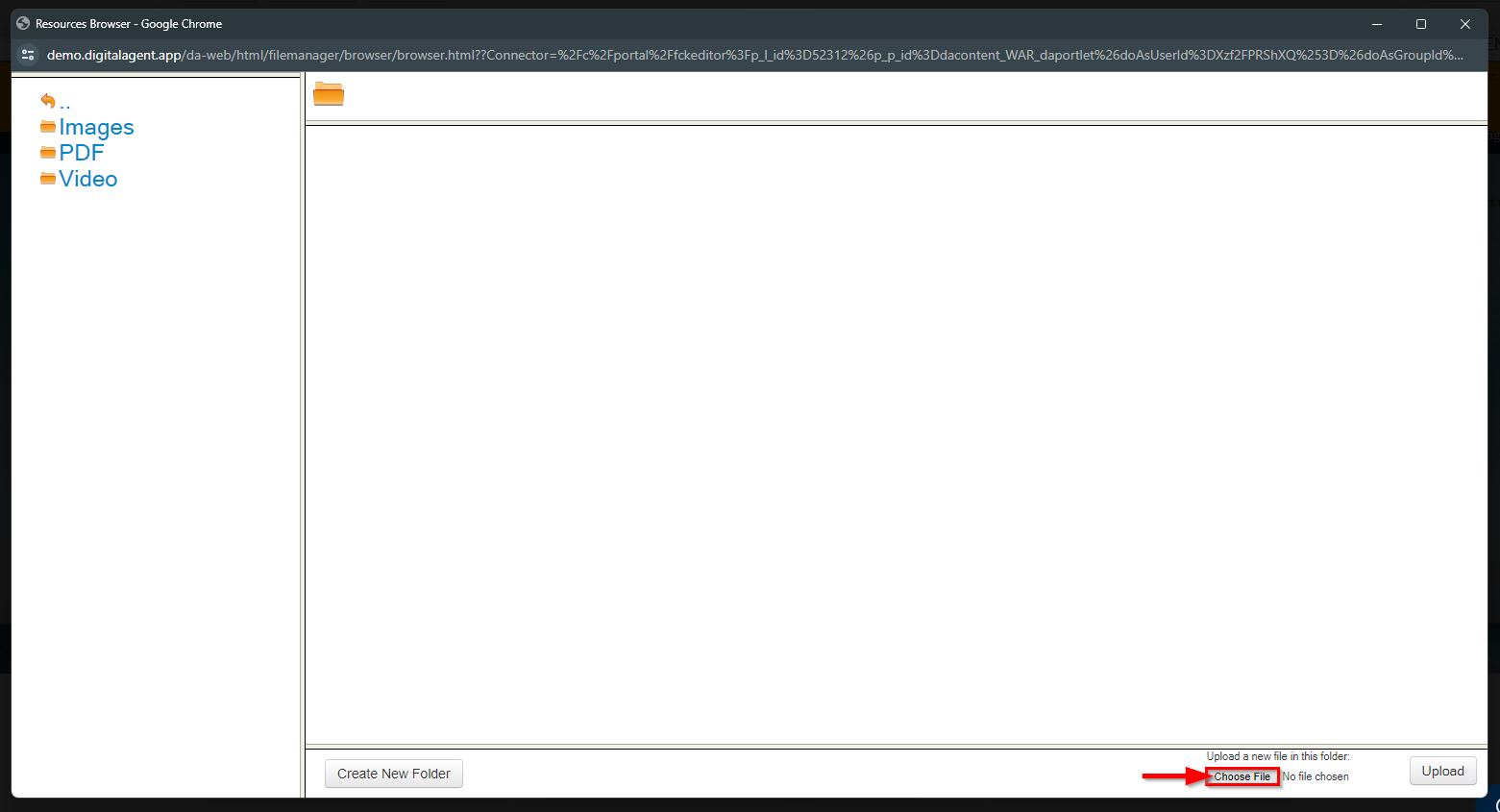
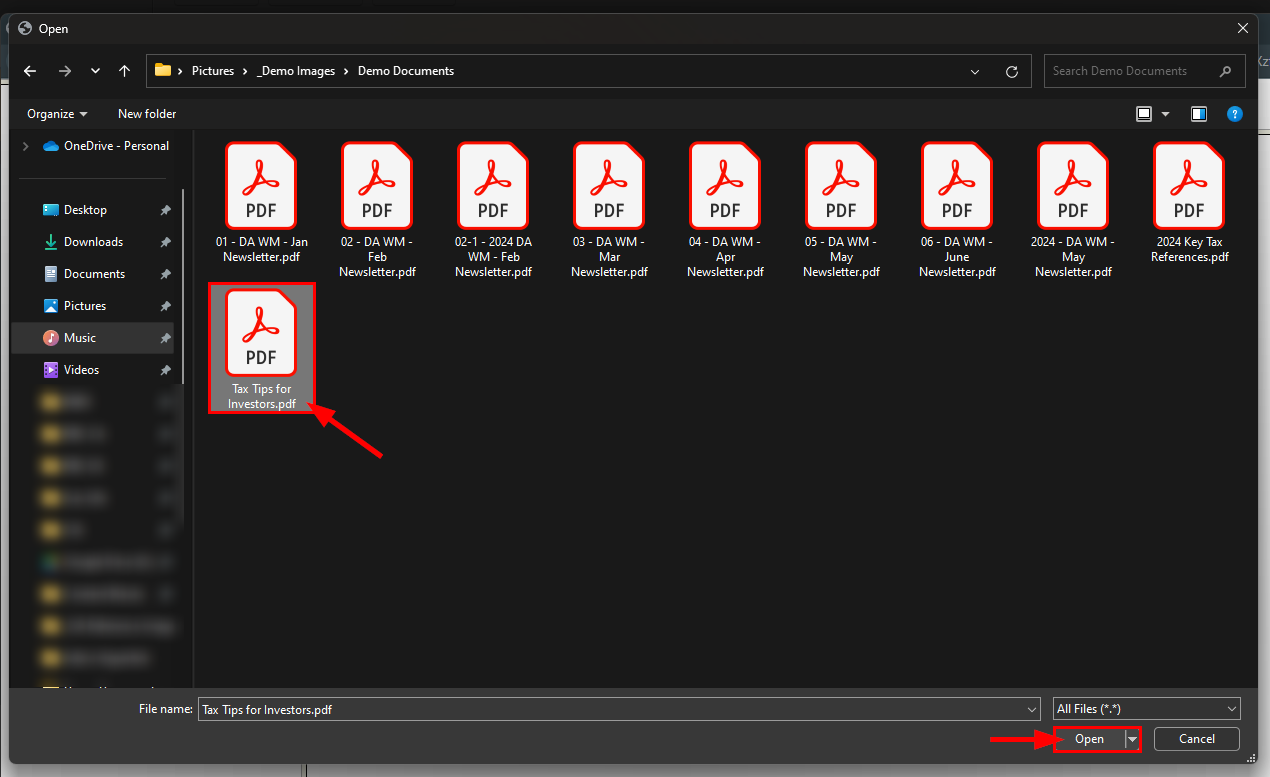
6. Find and select the document you want to upload from your computer's File Browser and click Open.
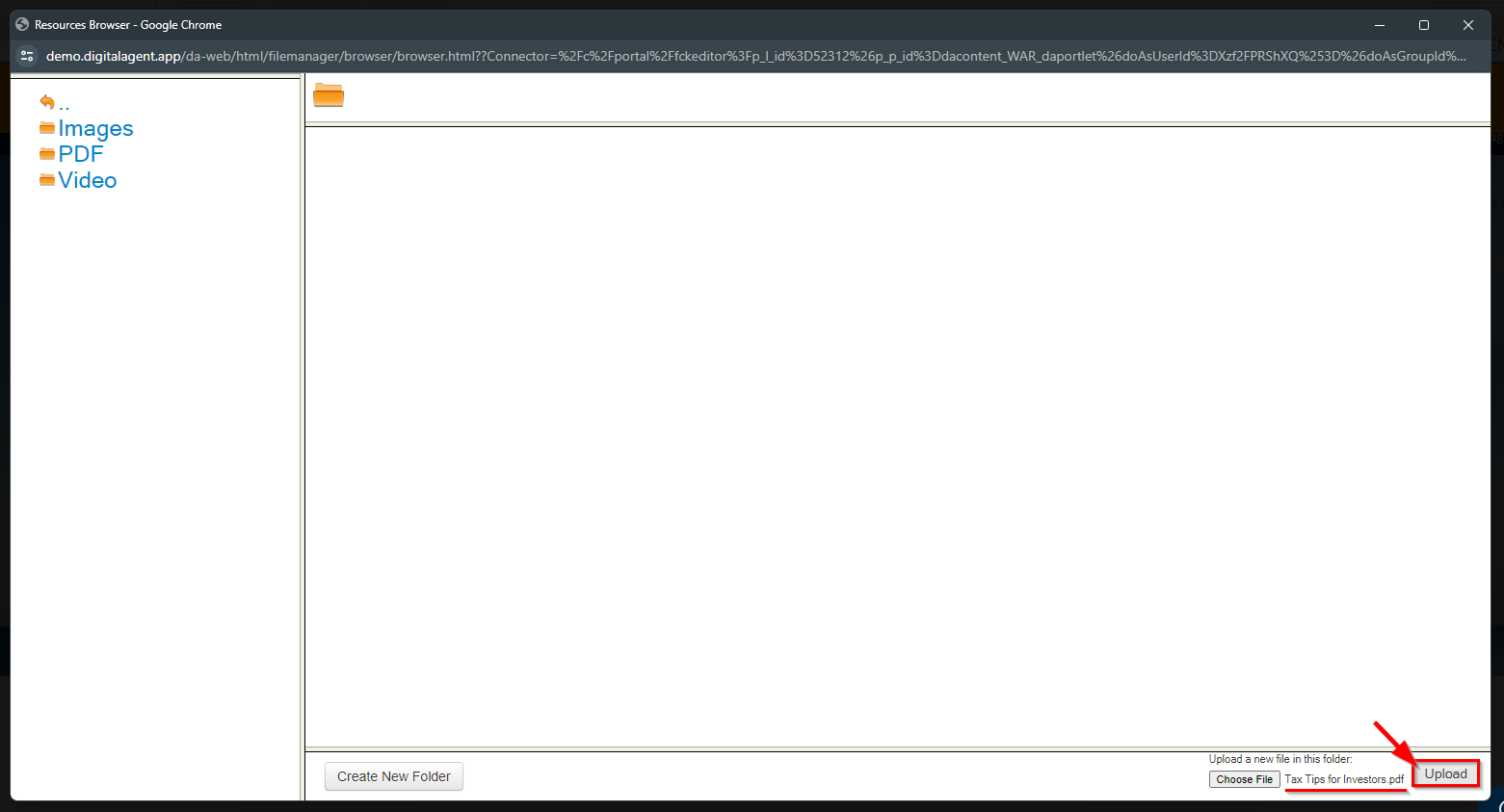
7. The document's name should display beside the Choose File button. Click Upload to upload it to the folder.
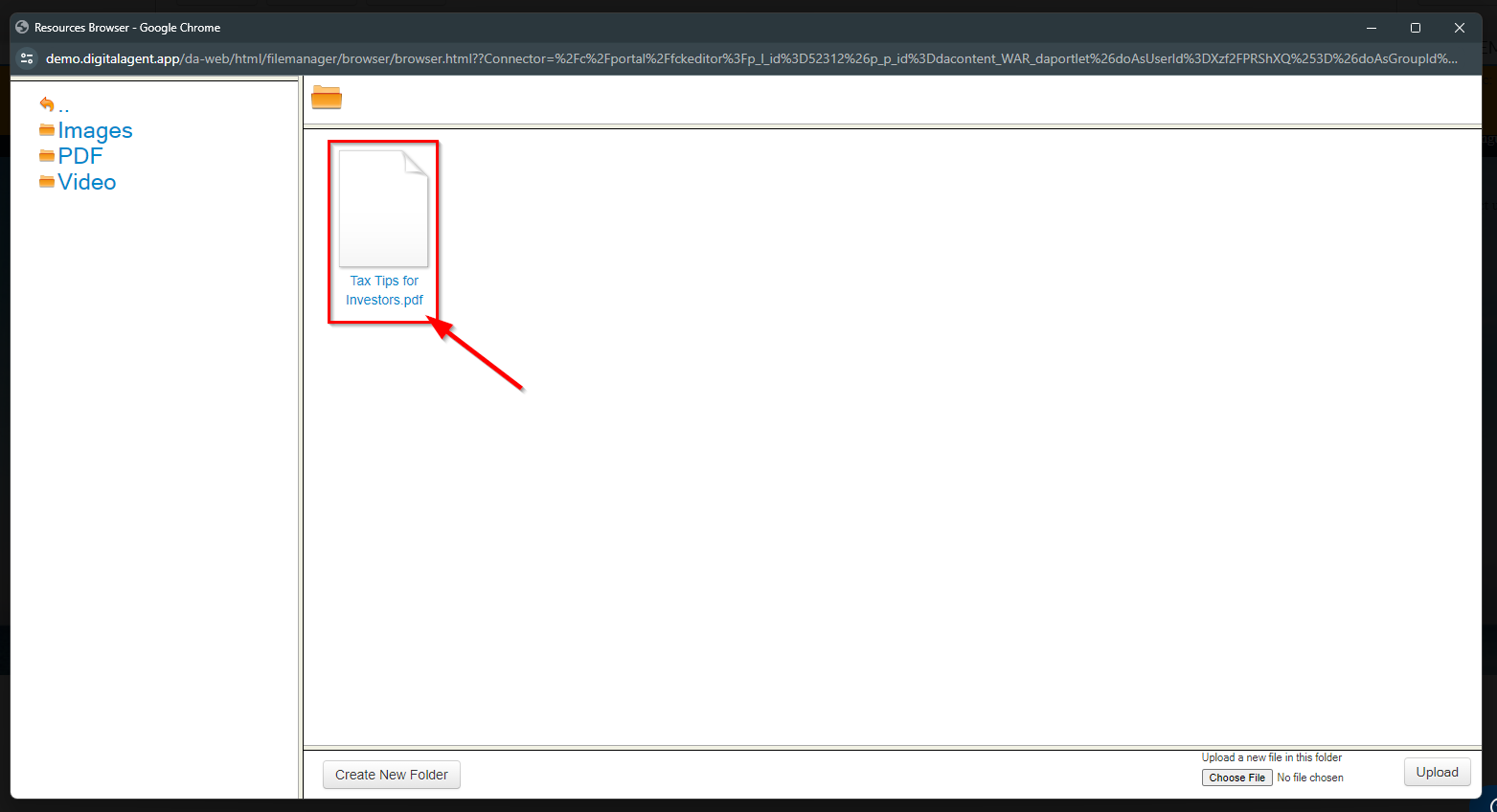
8. Select the PDF in the Resource Manager. The PDF will now show in the Link window.
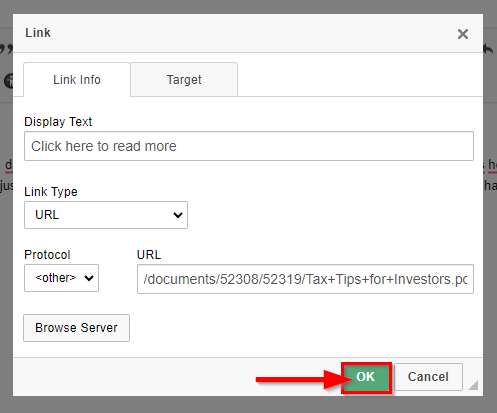
9. Change the Display Text if you do not already have something entered into this field and do not want it to simply display the URL. When you are finished, click OK.
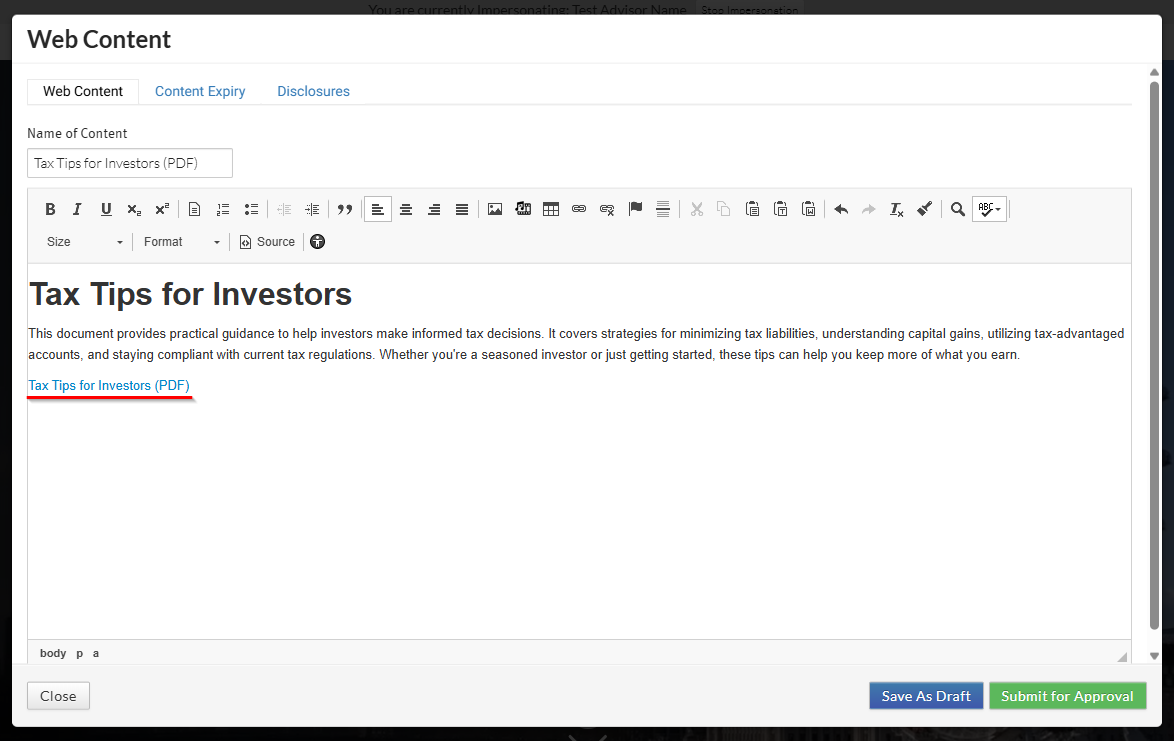
10. Your document will now be hyperlinked to your selection in the content block. You can test your link by selecting Save As Draft to view it on your web page.
Was this article helpful?
That’s Great!
Thank you for your feedback
Sorry! We couldn't be helpful
Thank you for your feedback
Feedback sent
We appreciate your effort and will try to fix the article