The Compliance HQ is a centralized hub for Compliance and Marketing users to review content that's been submitted on advisor's websites. Users may be assigned to Queues created by the Marketing team that manages the infrastructure of advisor websites.
Submission Area
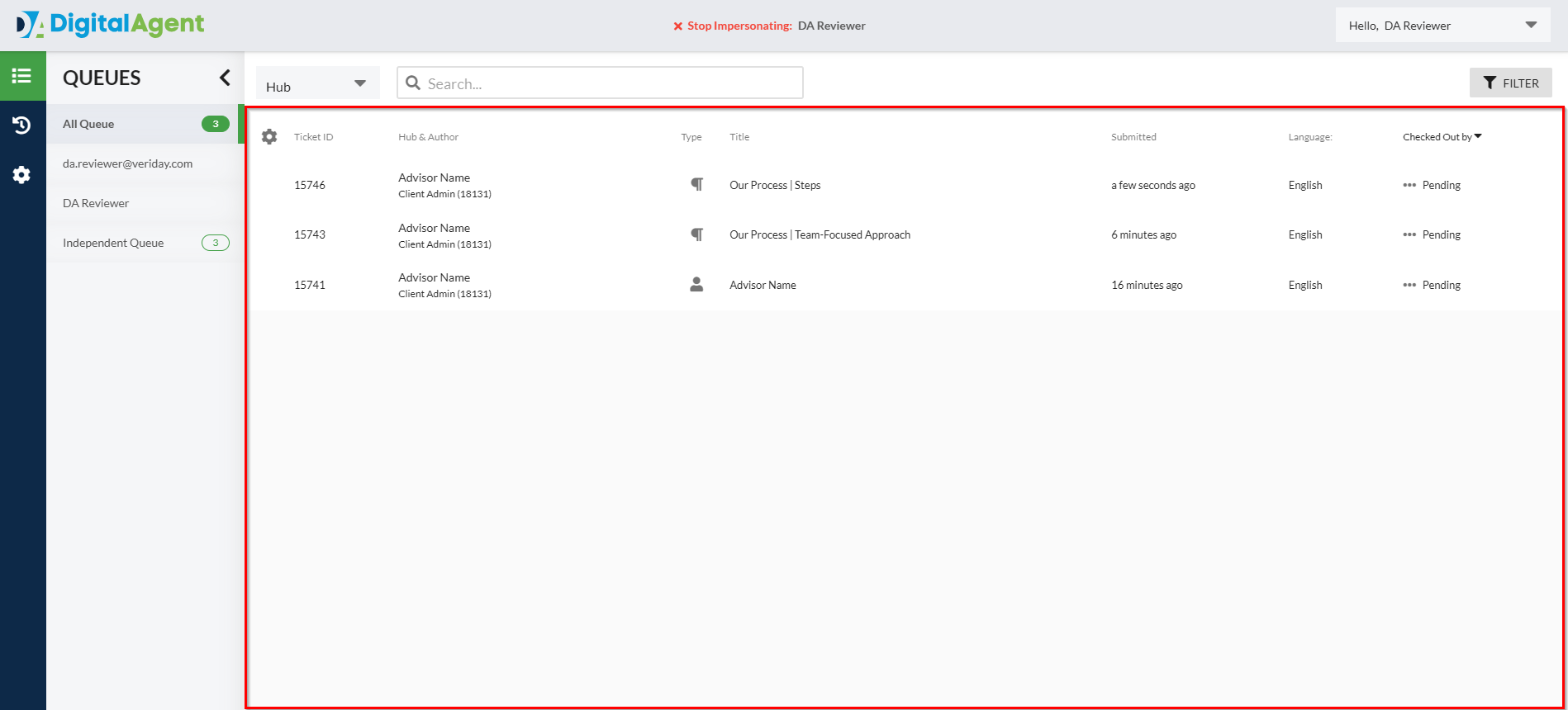
The Submission Area is where all advisor's content submissions will display. Once an advisor submits a piece of content for review, it's sent to the Compliance Queue their hub is associated with, and will now be accessible to all reviewers assigned to that specific queue. Multiple reviewers may be assigned to the same queue.
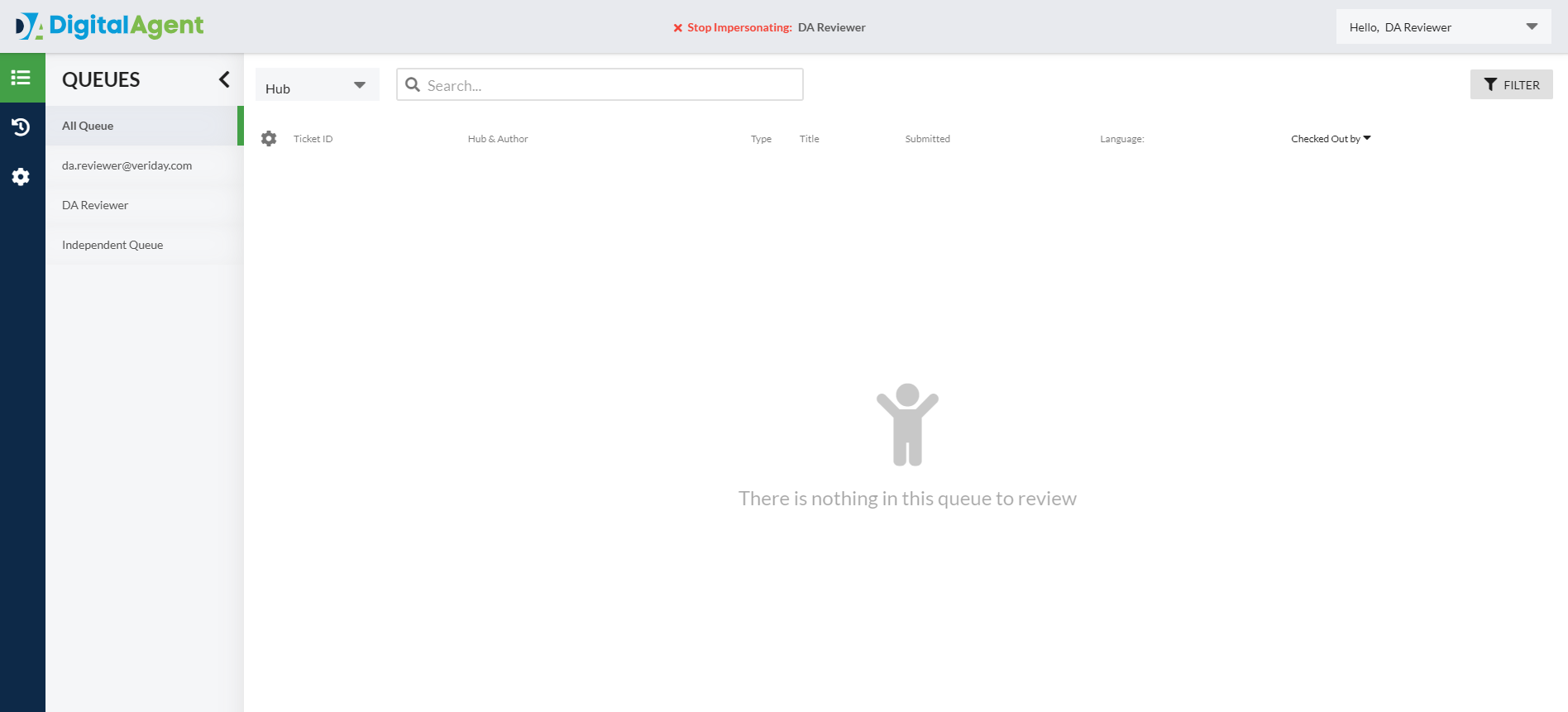
If no submissions are present in the queue, a "There is nothing in this queue to review" message will display.
Sorting & Filtering the Submission Area
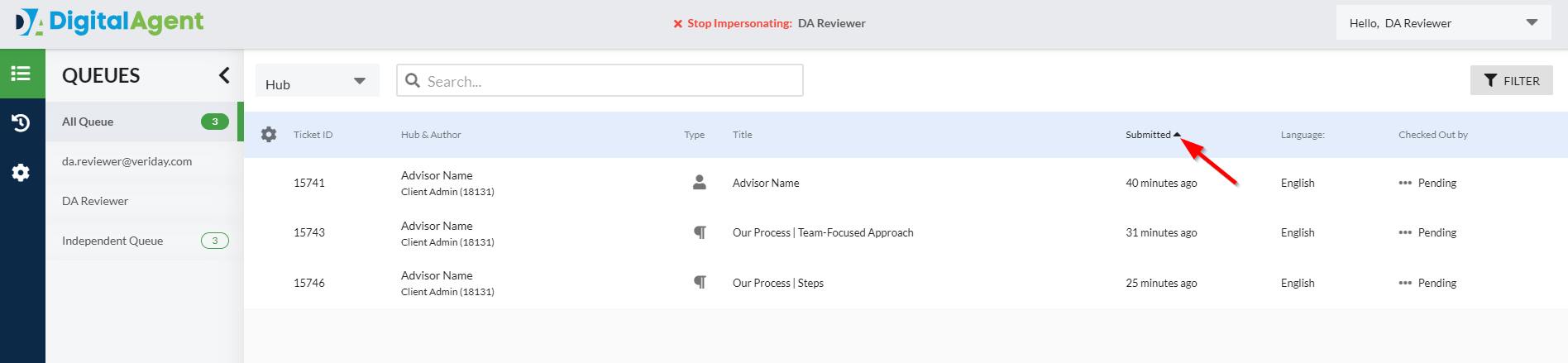
All submissions may be sorted in Ascending or Descending order using the column headers at the top of the Submission Area.
Filtering Your View
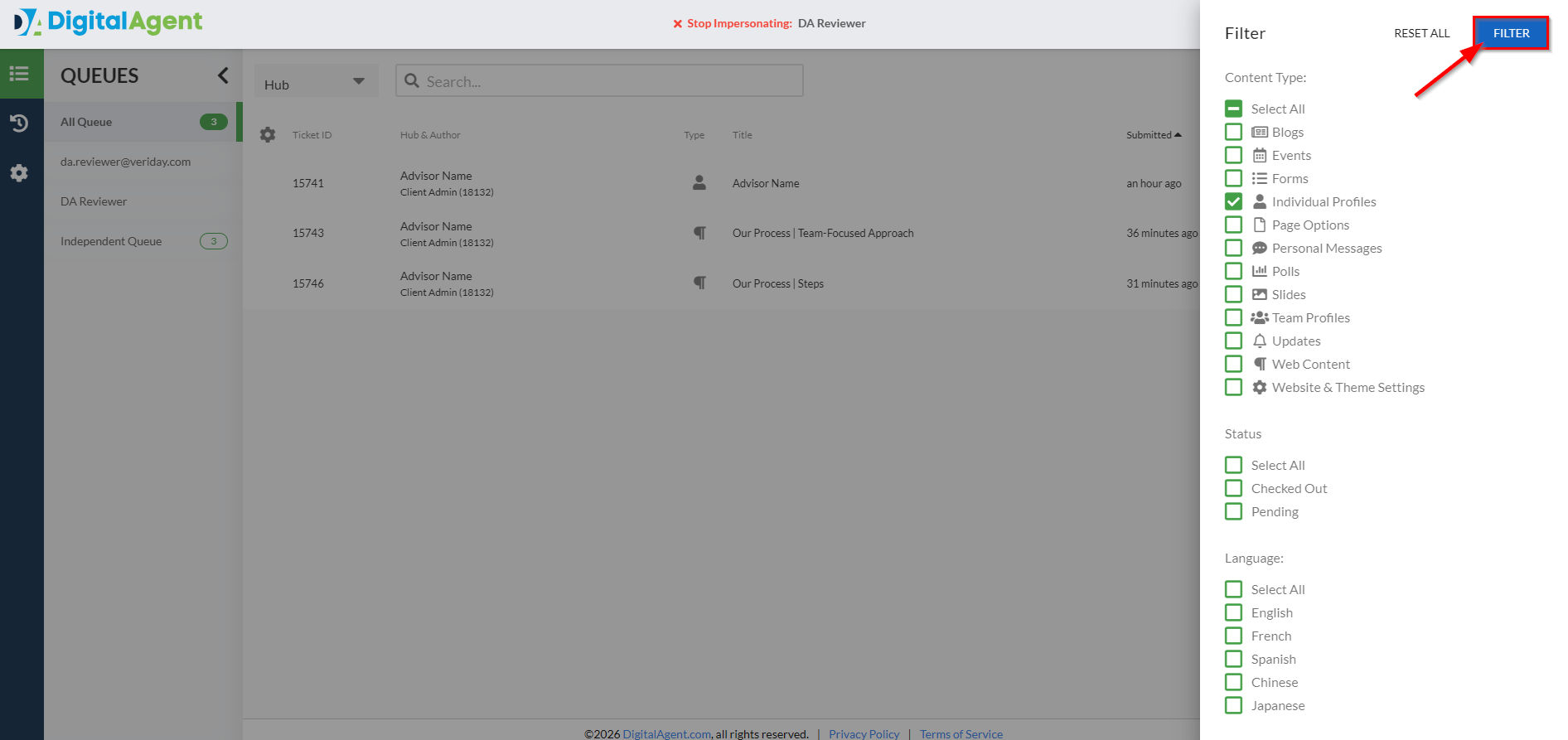
1. To apply filters, select the Filter button to open the Filter panel.
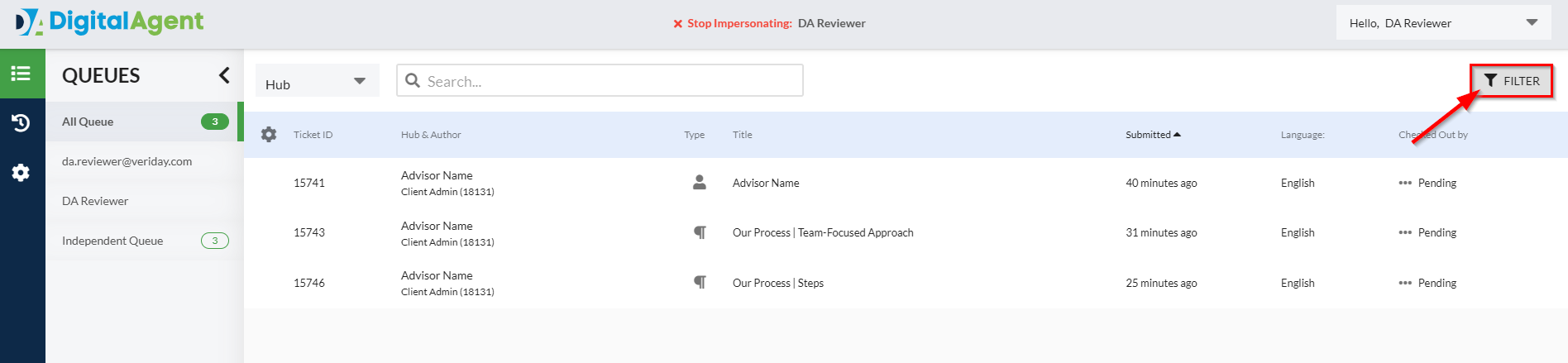
2. Choose any combination of Content Type, Status, or Language to display only submissions that meet your selected criteria.
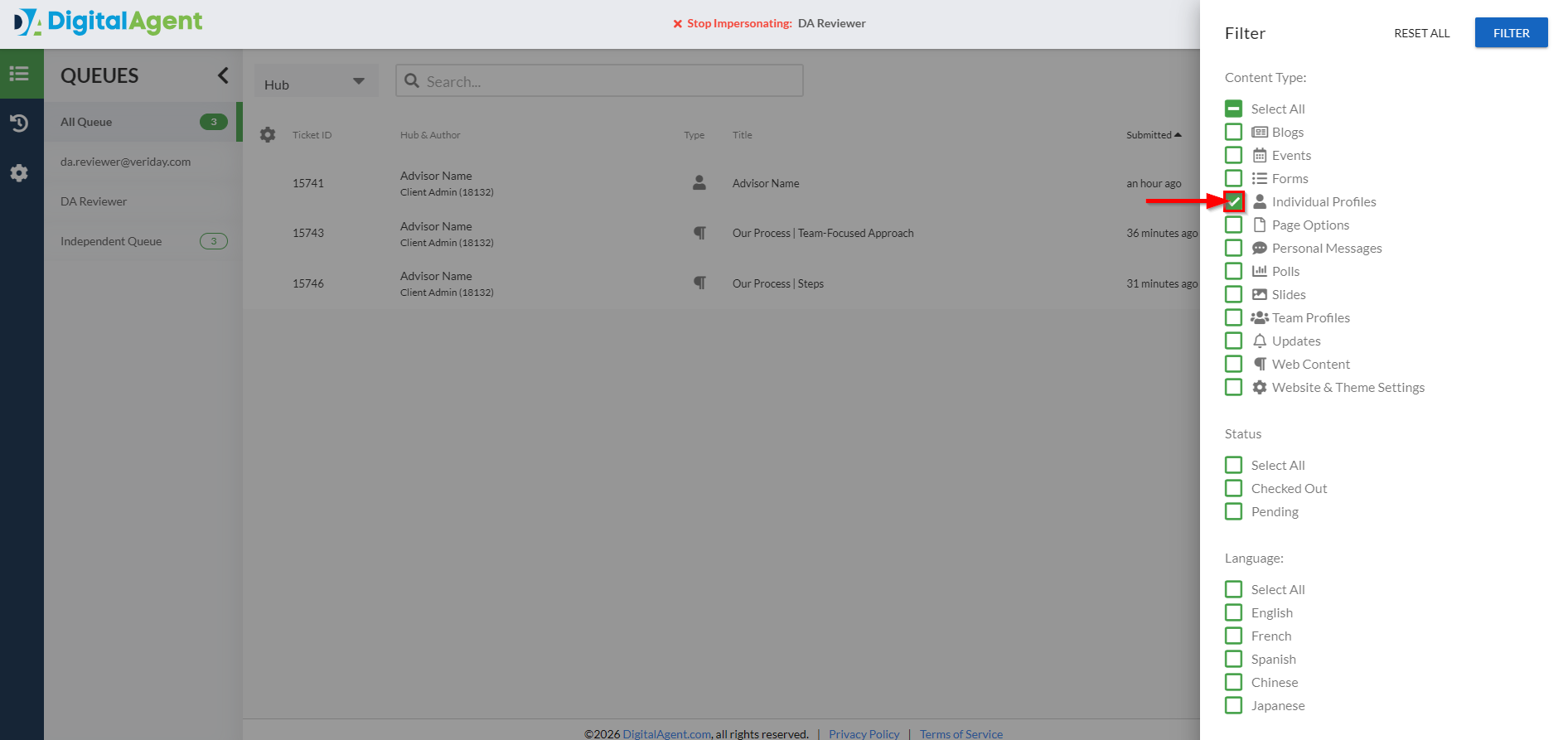
3. When finished, click the Filter button to apply your filters to your current view.
Queues List
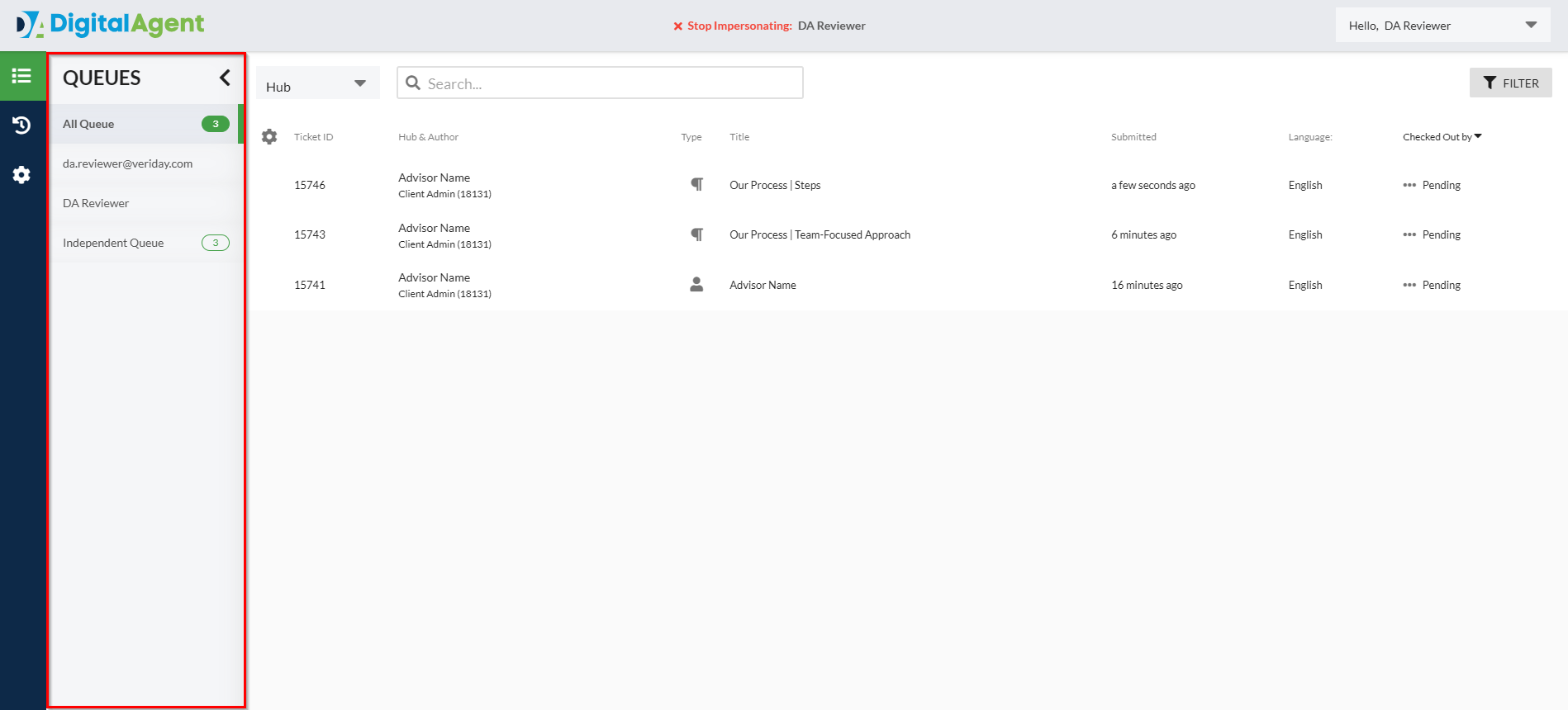
By default, your view will display submissions from All Queues. The Queues List in the sidebar allows you to filter and view submissions from hubs that are associated with specific queues.
If you've been assigned as someone's out of office delegate, an additional queue will appear under that reviewer's name, displaying submissions from their assigned queues.
Checking Out Submissions
When you select a submission from the list, it is automatically checked out under your name.
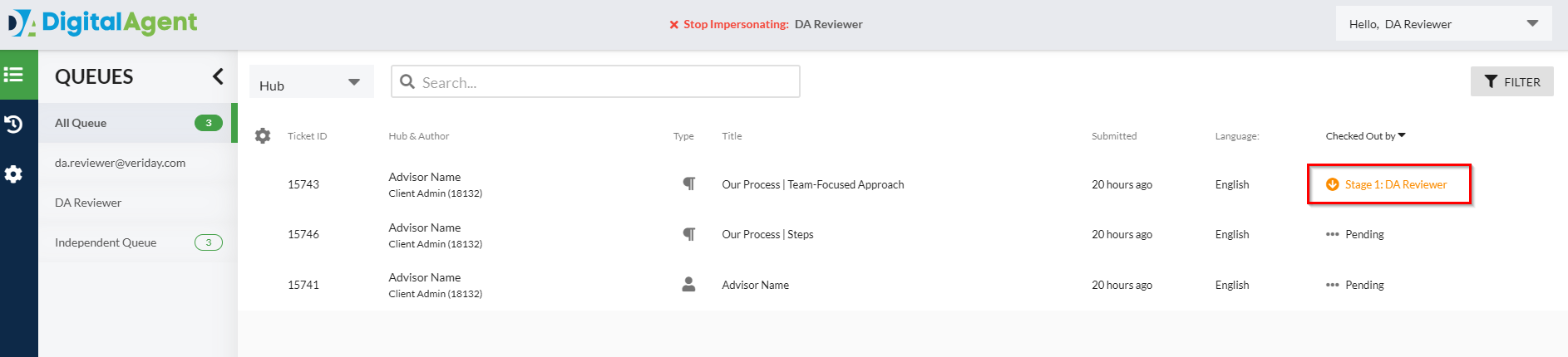
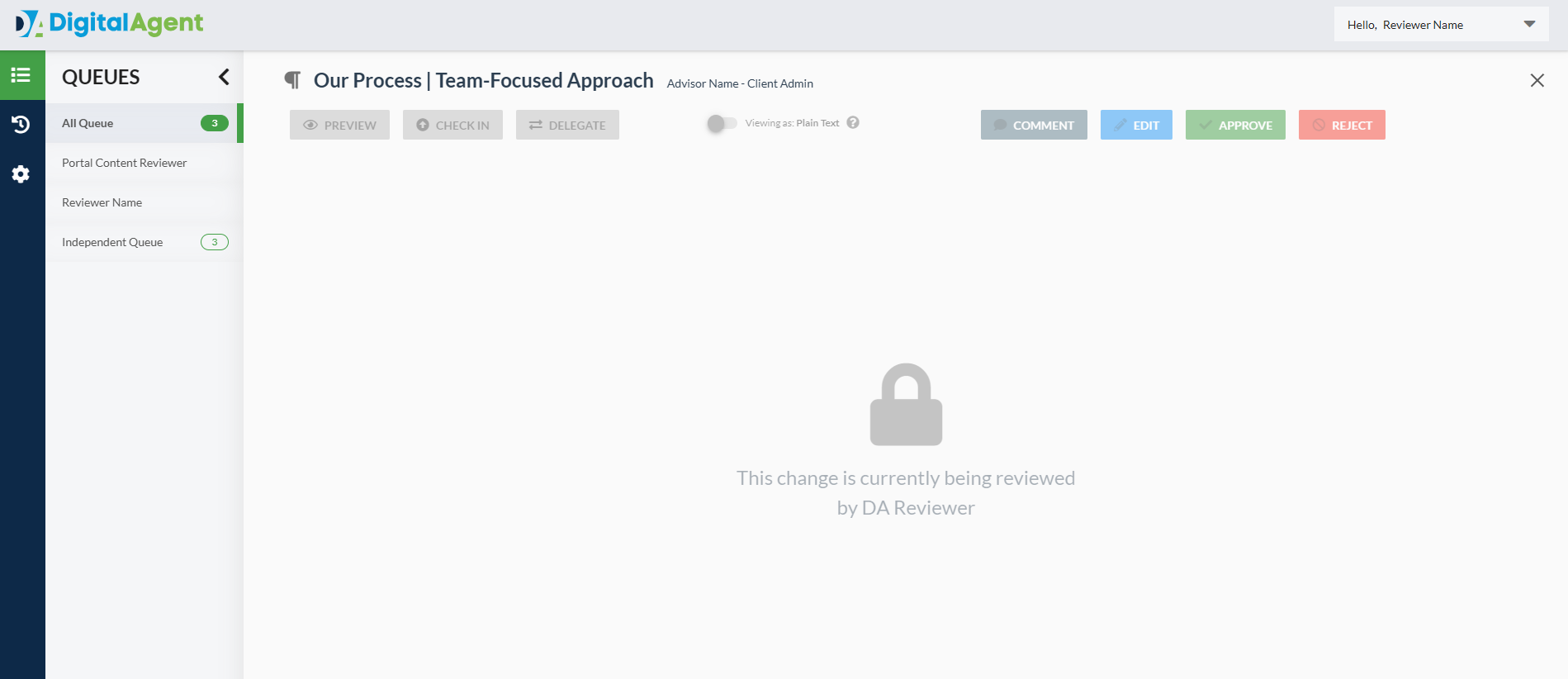
While a submission is checked out, other reviewers will see it as “Currently being reviewed” and can not make changes until it has been checked back in.
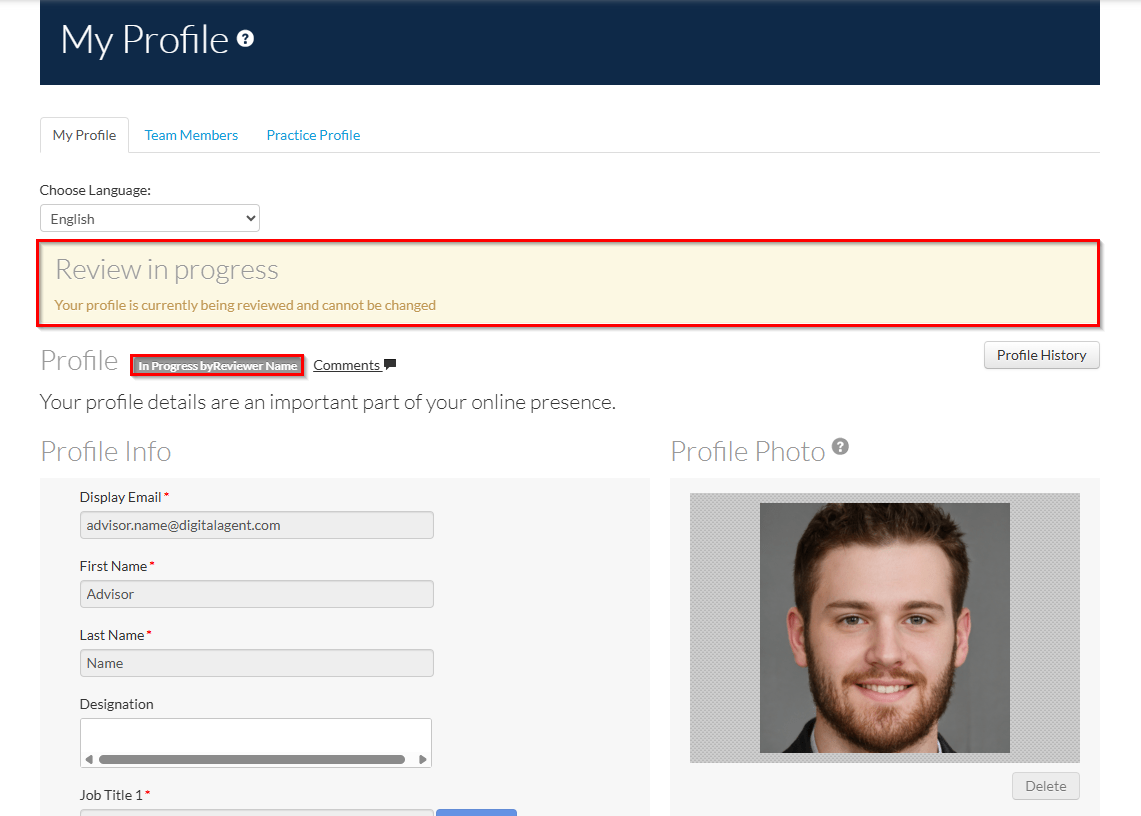
Any users who view the checked-out submission from the sub it originated from will see the submission as In-Progress and can not access the content to make changes until after it has been approved, rejected, or checked-in again.
Checking In a Submission
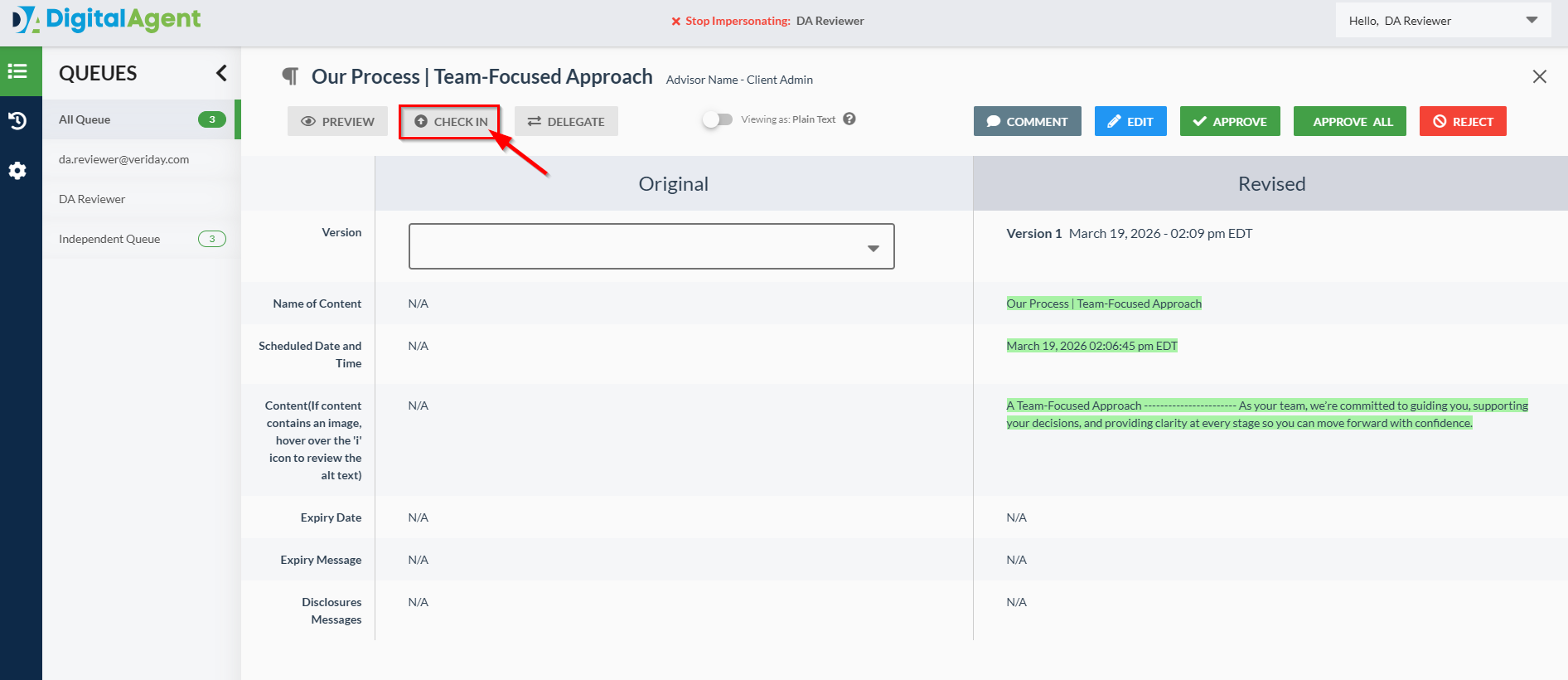
To make a submission available again, select it from the list and click Check In.
Once checked in, the submission will be accessible to all reviewers for further action.
Reviewing and Approving, Editing, or Rejecting Submissions
To review a submission, select it from the list.
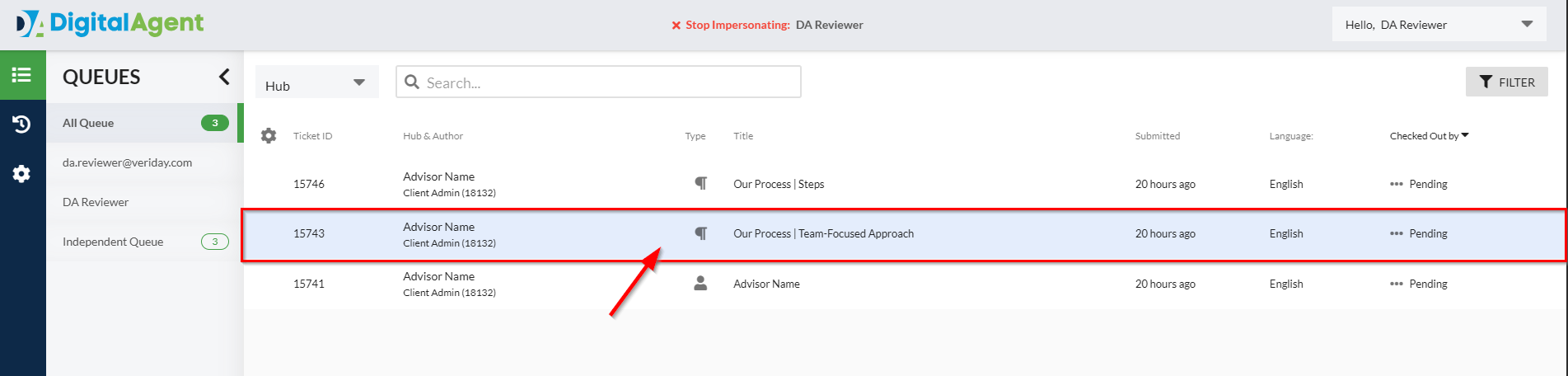
On the submission details page, you can view and compare the most recently submitted content with previous versions. The latest version will display in the Revised column.
For newly submitted content, the Original column with display "N/A".
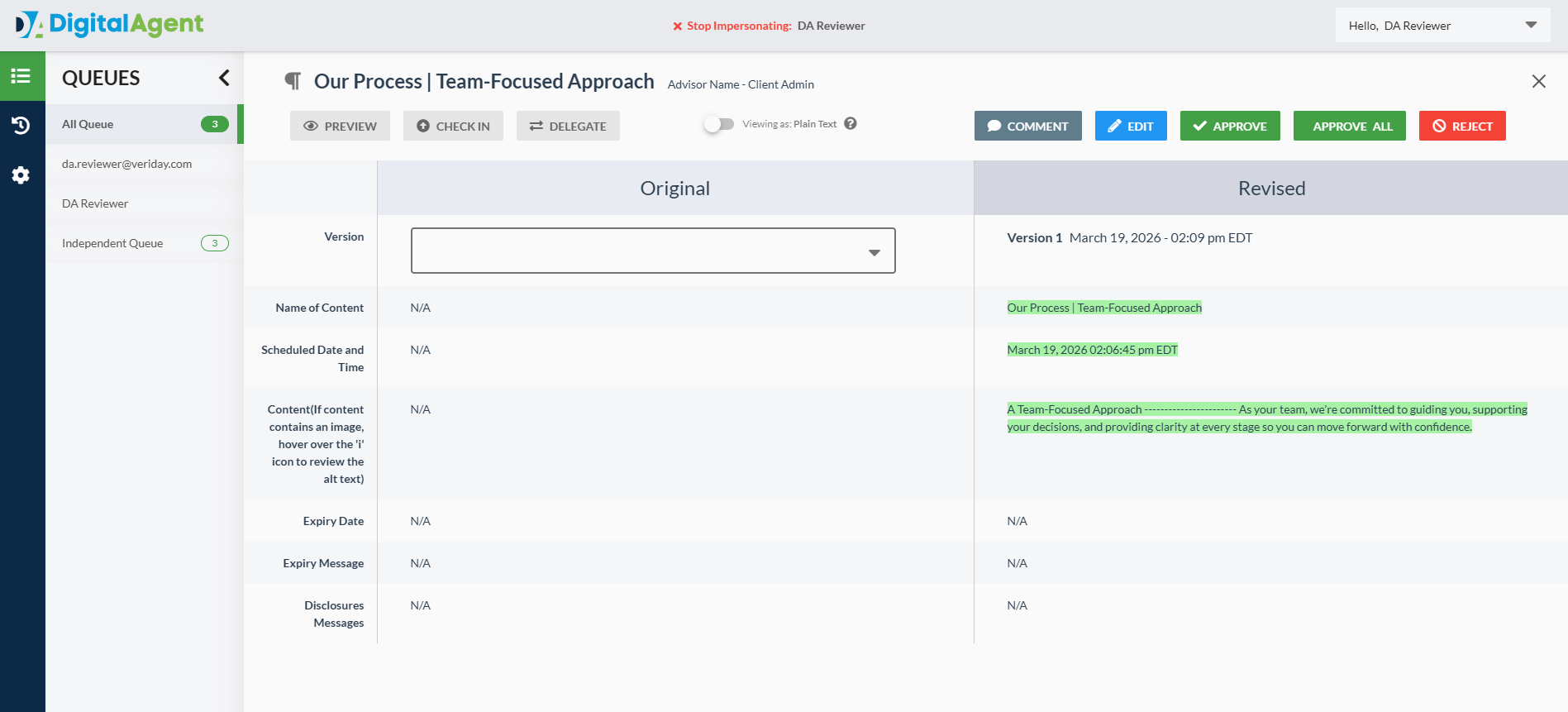
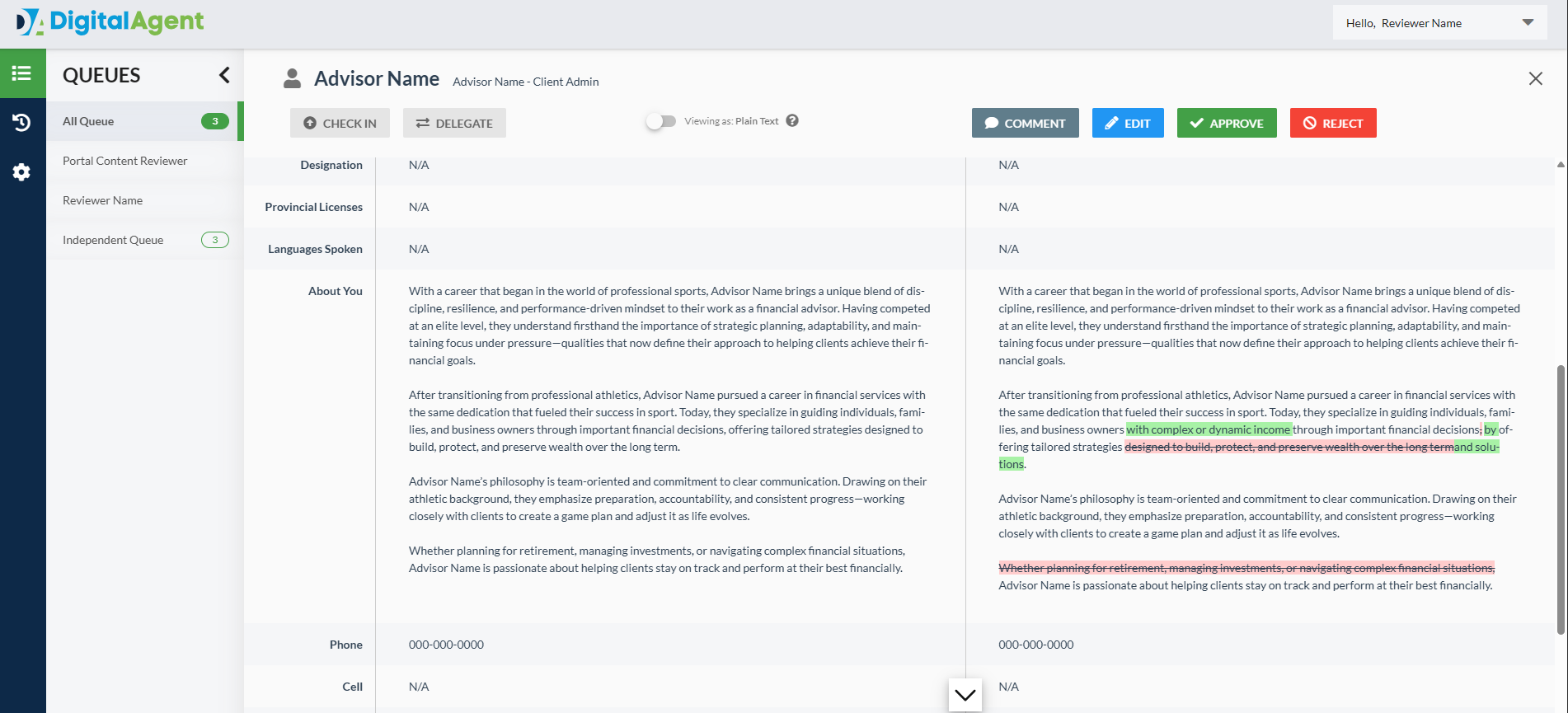
Content that has been edited will display changes under the Revised column, with added content highlighted in green and removed content highlighted in red and styled with strikethrough.
Approving Submissions
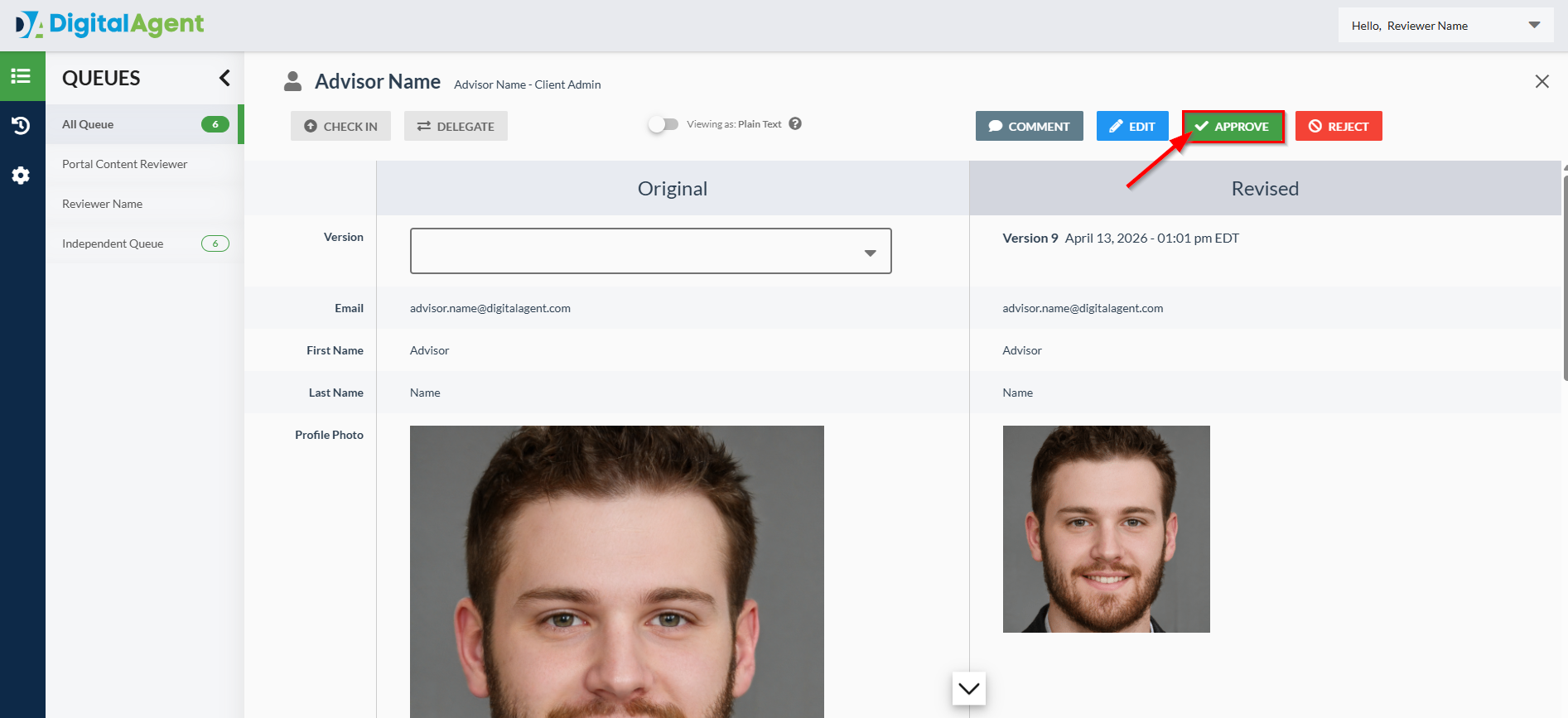
To approve a submission, click Approve at the top right while viewing the submission details.
If your environment's Queues are configured with one-stage workflow, the submission will be approved and the changes will reflect on the advisor's live site within 10–20 minutes.
If your environment's Queues are configured with multi-stage workflow, the submission will move up to the next stage of compliance review.
Approve All
Depending on your environment, you may also see an Approve All button. Approve All allows you to bypass any additional workflow stages in a multi-stage workflow. A comment is required on the submission when using Approve All.
Editing a Submission
You may directly edit a submission on behalf of the submitting user within the Compliance HQ.
Using the Edit function can help to resolve small issues, such as spelling and grammar, instead of delaying the submission by rejecting it back to the user.
Was this article helpful?
That’s Great!
Thank you for your feedback
Sorry! We couldn't be helpful
Thank you for your feedback
Feedback sent
We appreciate your effort and will try to fix the article