Follow the steps below to embed a video on a page of your Digital Agent (DA) website.
1. Choose Your Video
Select the video you want to display from a supported video hosting platform such as YouTube, Vimeo, or Limelight. If your video has not yet been uploaded, upload it to one of these platforms before proceeding.
2. Copy the Embed Code
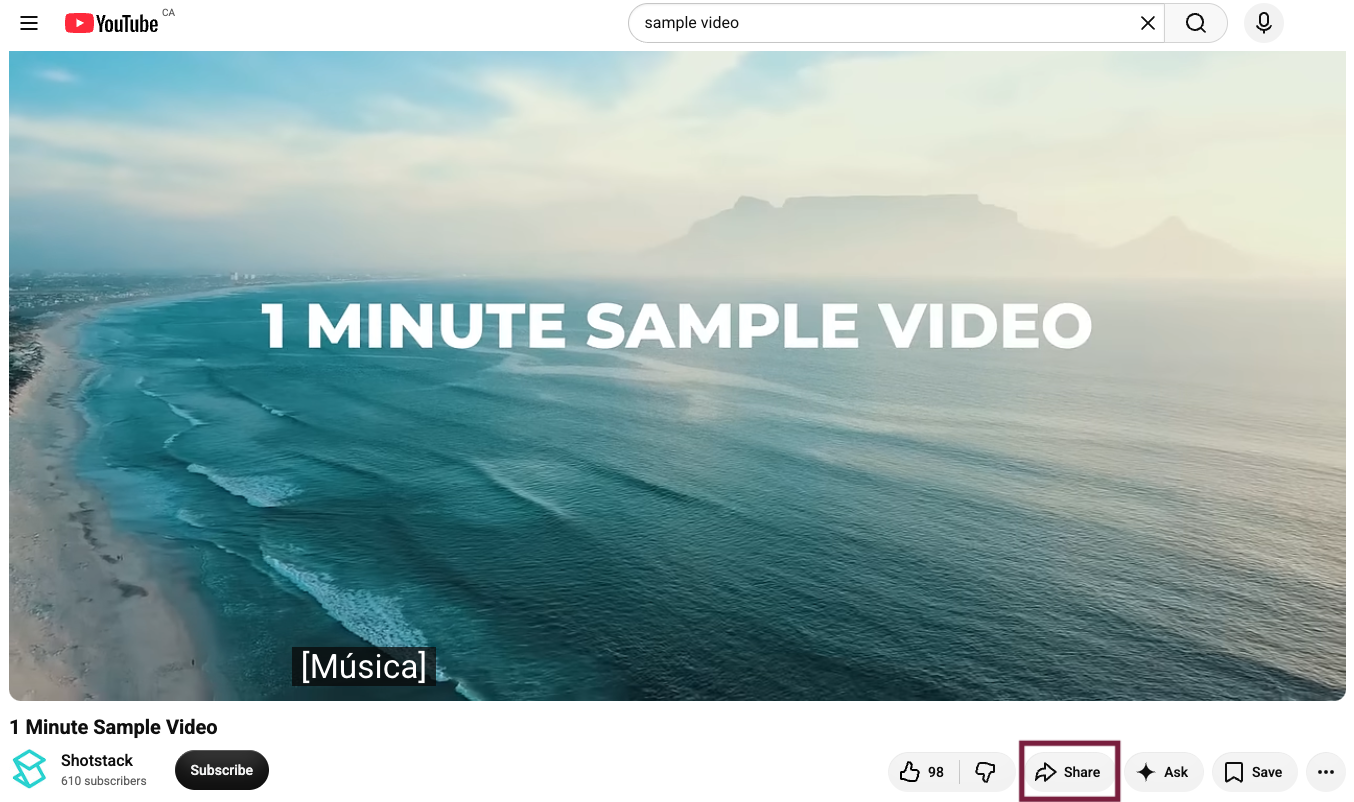
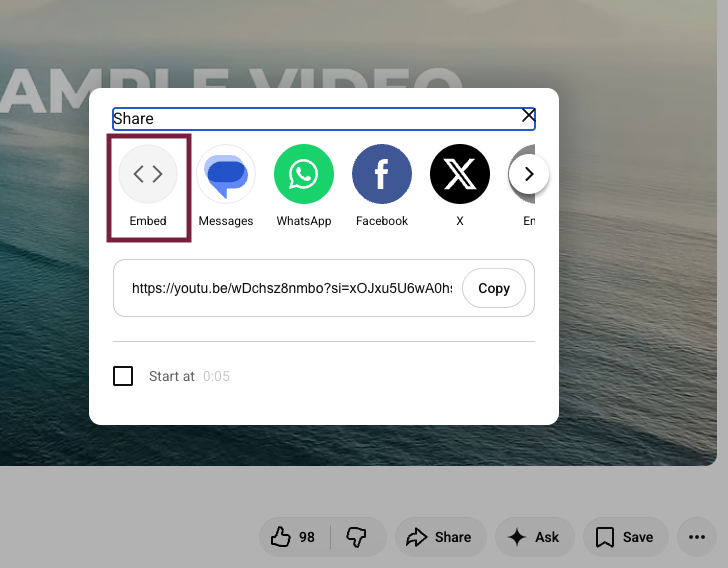
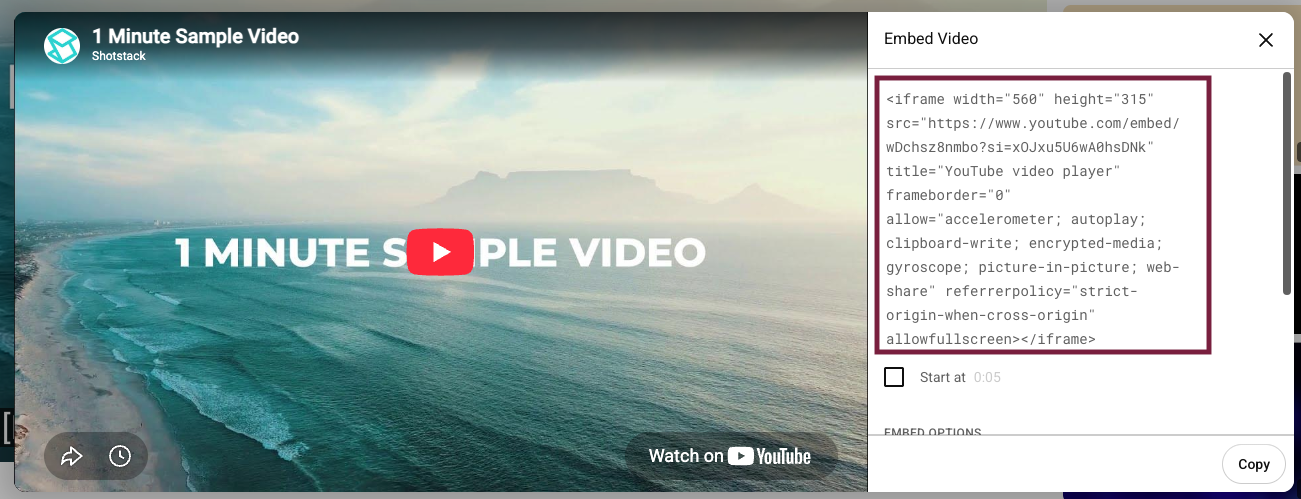
On the video's hosting platform, click the Share button and select the Embed option. The platform will generate an embed code (shortcode). Copy the entire code provided.
3. Log in to Digital Agent
Log in to the Digital Agent platform, impersonate your workspace, and navigate to the webpage where you want to display the video.
4. Open the Content Section
You can either:
- Add a new Content Section, or
- Edit an existing Content Section by selecting Options → Edit.
5. Paste the Embed Code
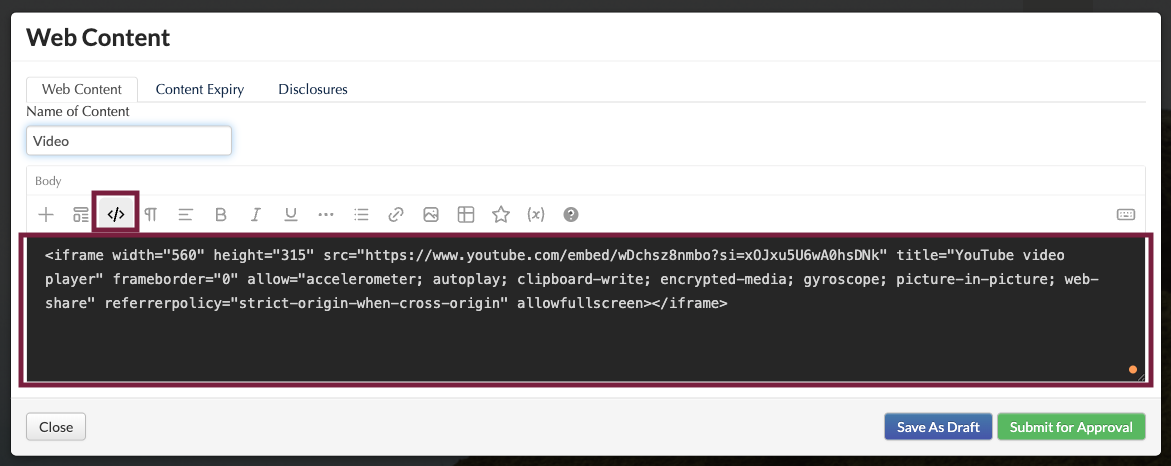
Open the content editor and paste the embed code into the editor.
If you are replacing an existing video, simply remove the old embed code and paste the new one.
Tip: You can switch to Visual Mode to preview how the video will appear within the content editor.
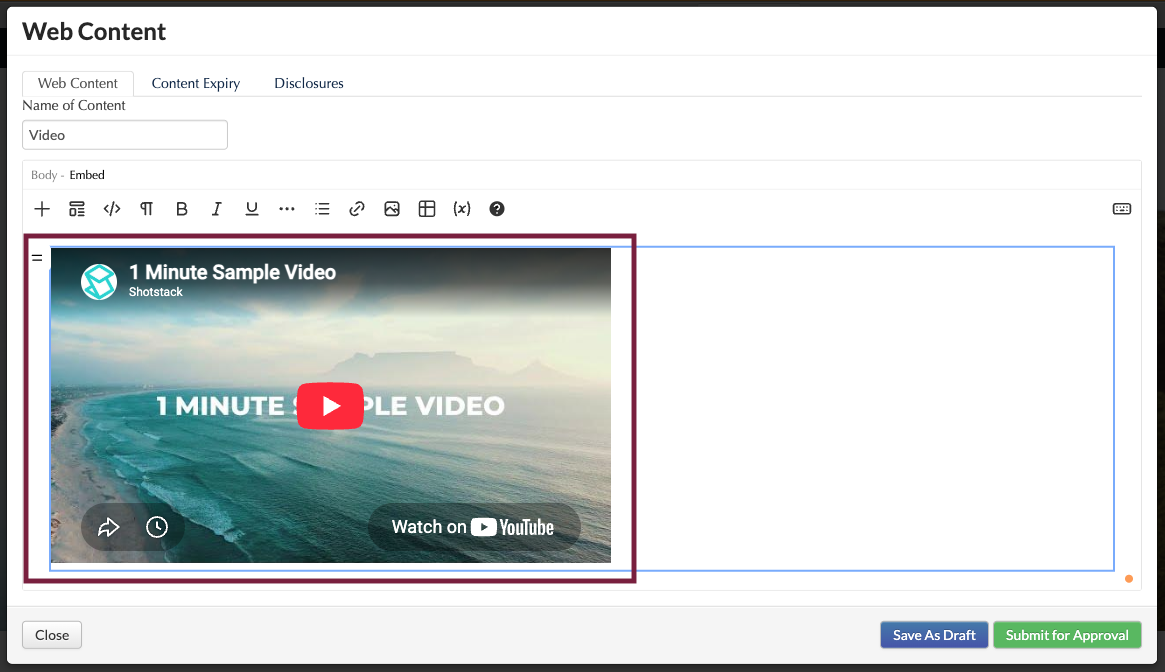
6. Preview the Video
Save the content section as a Draft and preview the webpage to ensure the video is displayed correctly and appears as expected.
7. Submit for Compliance
Once you have confirmed the video is displaying correctly, Submit the content section. It will then proceed through the compliance review process before being approved and published live on your Digital Agent website.
Was this article helpful?
That’s Great!
Thank you for your feedback
Sorry! We couldn't be helpful
Thank you for your feedback
Feedback sent
We appreciate your effort and will try to fix the article