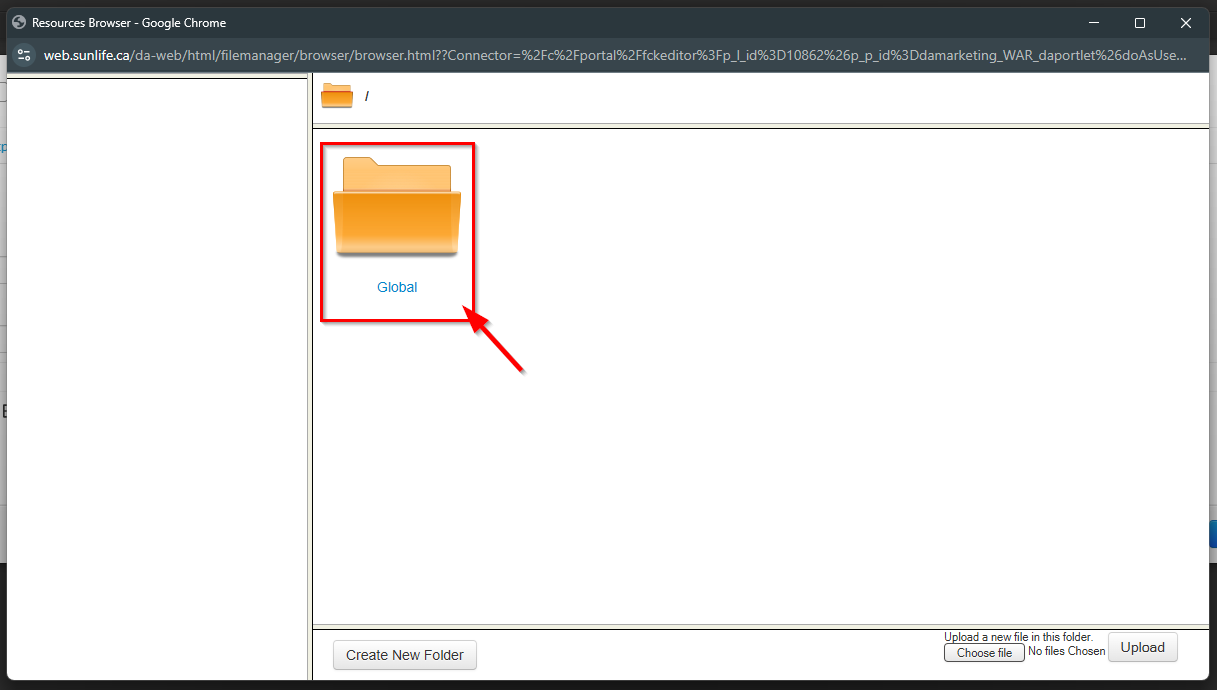
⚠️Important: By default, any image added to a Pre-Approved Content Block created in the Marketing HQ will need to be uploaded to the Global folder.
If you do not want your marketing images to be uploaded to the Global folder, you may Upload to the Marketing File Manager instead.
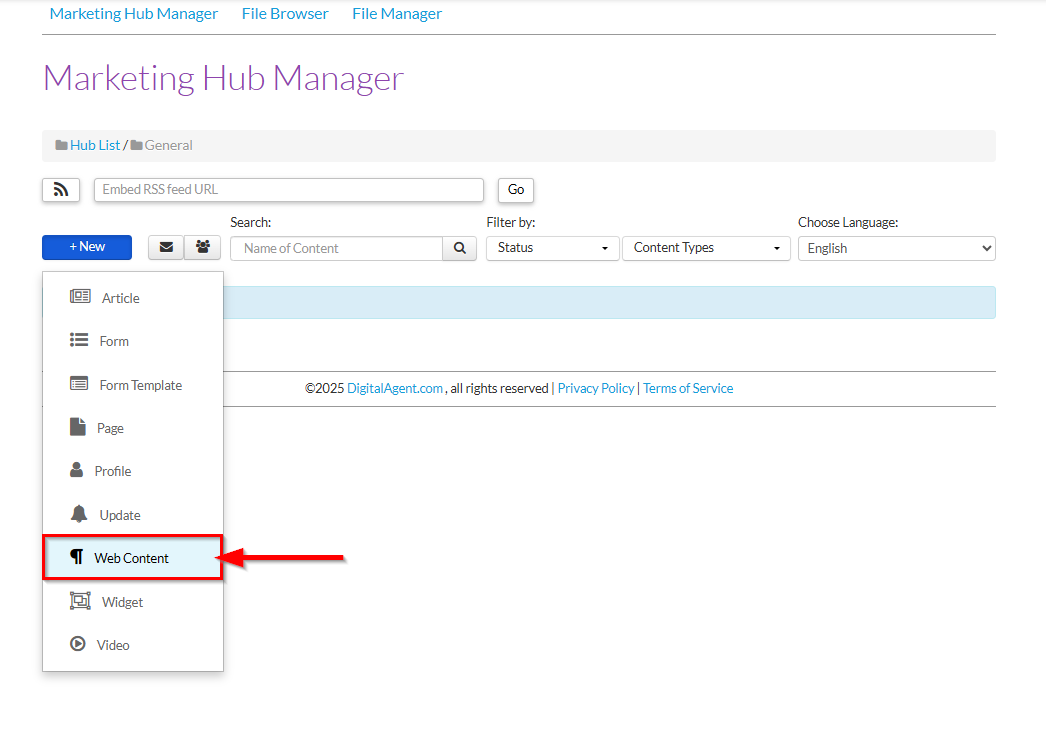
1. Within a Marketing Hub, click +New and select Web Content from the drop-down to open the Add New Web Content editor.
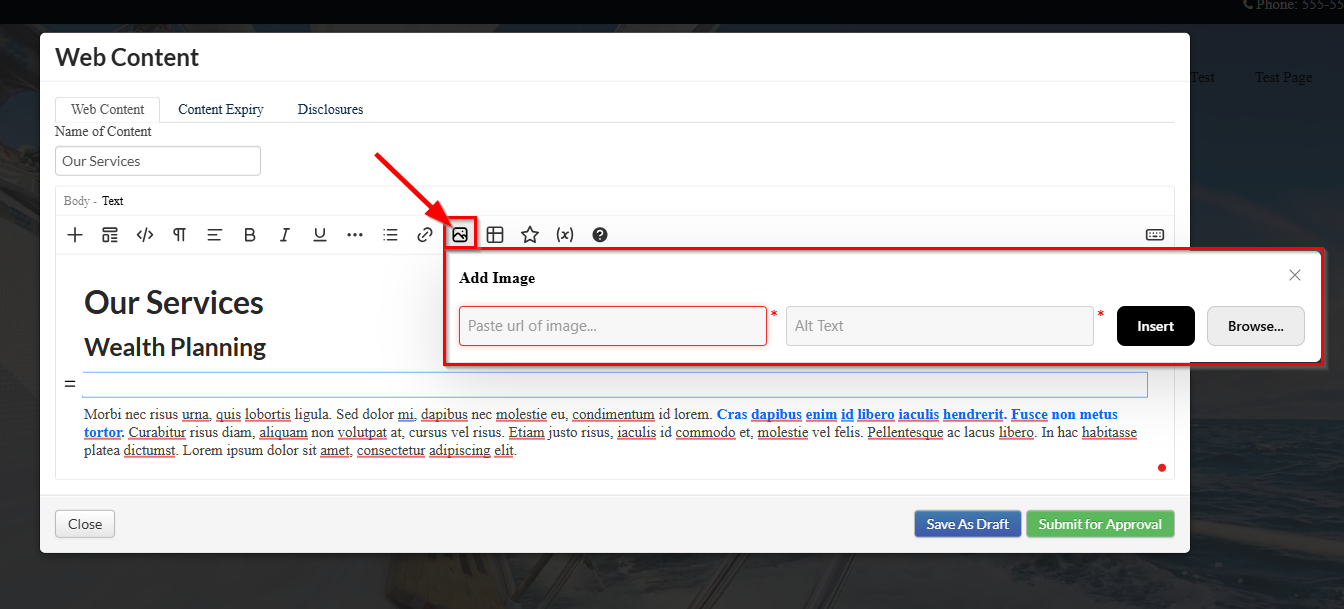
2. While in the Web Content Editor, click the  Image icon to open the Add Image window.
3. Select the Global folder.
4. In the bottom right corner, select the Choose File button. Select the image you want to upload from your file browser and click Open.
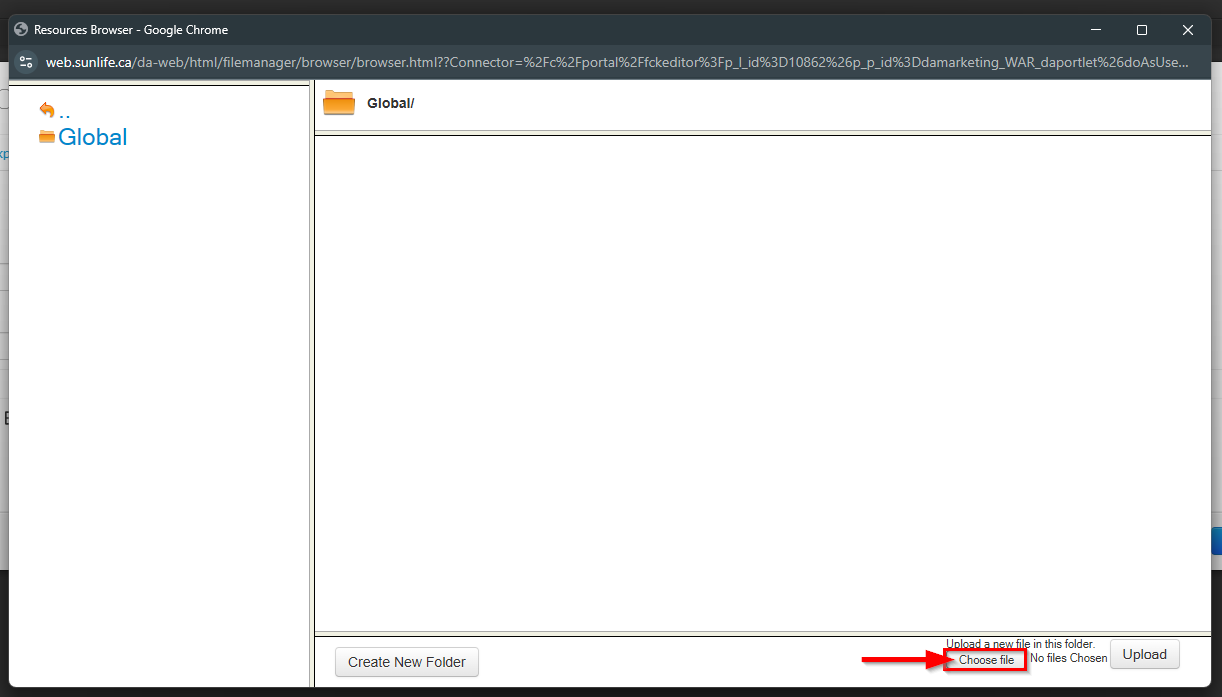
5. You should see the filename shown beside the Choose File button. Click Upload. The image will now upload into the folder above.
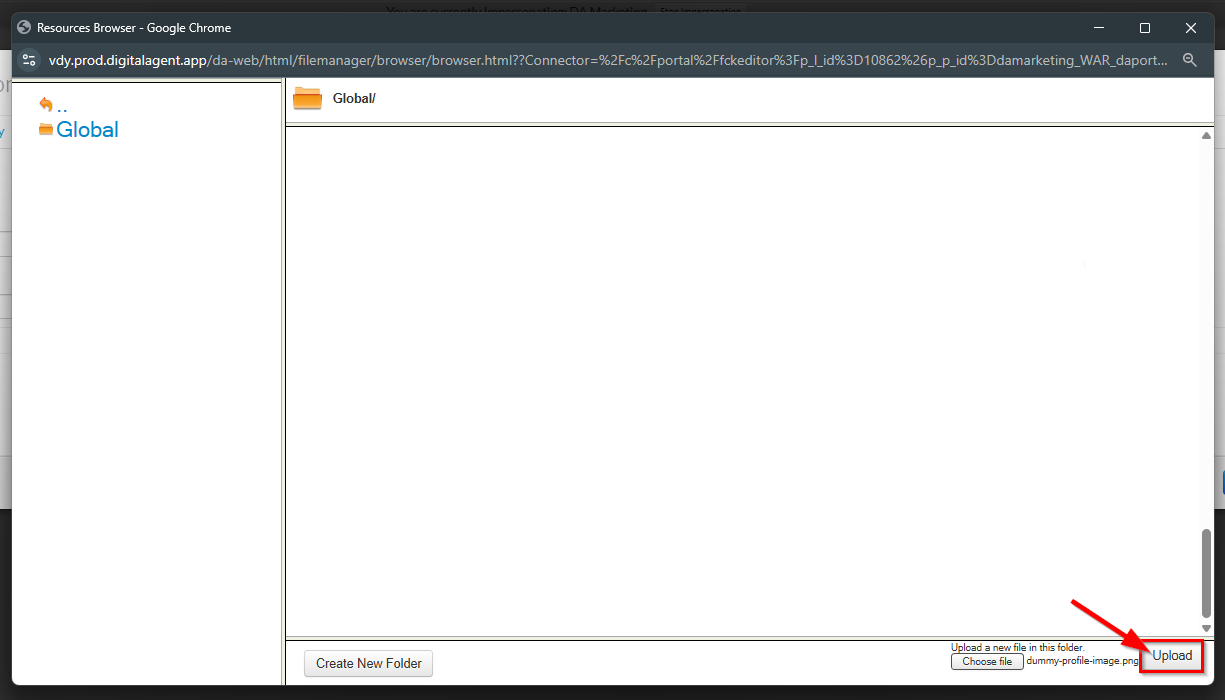
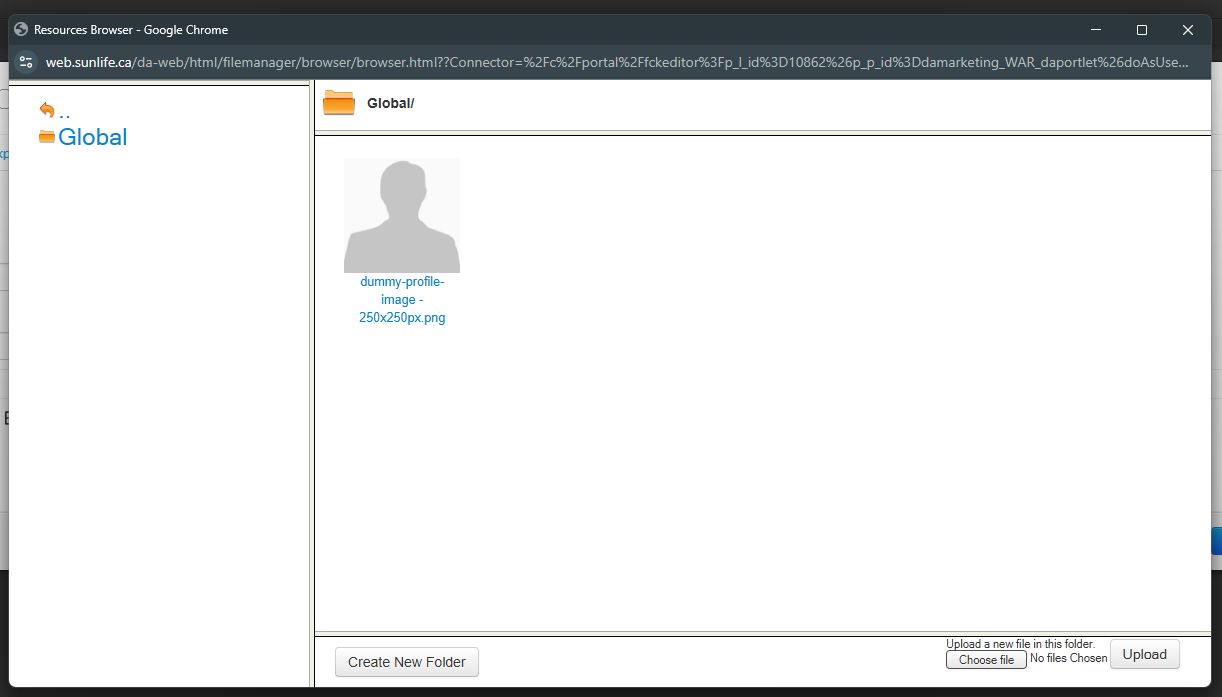
6. Your image will now be available in the Global folder for selection across all hubs. You do not need to add the image to the content block and you may exit the Web Content Editor.
Was this article helpful?
That’s Great!
Thank you for your feedback
Sorry! We couldn't be helpful
Thank you for your feedback
Feedback sent
We appreciate your effort and will try to fix the article