Creating Your Pre-Approved Form
1. Within a Marketing Hub, click +New and select Form from the drop-down to open the New Pre-Approved Form editor.
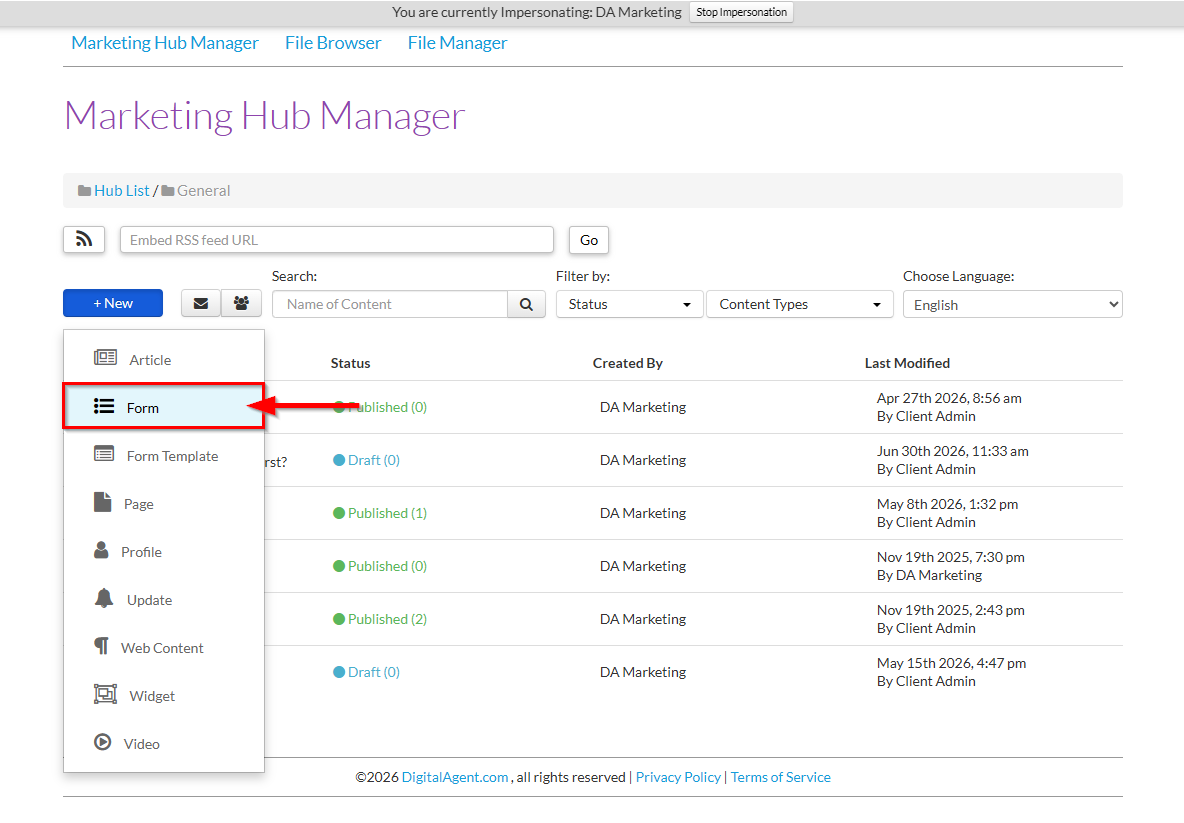
2. Follow the same steps as in Creating a New Custom Form to create and customize your Pre-Approved Form. Your Hidden Fields may be customized on "Step 2: Design your form".
Adding Hidden Fields to a Form
Hidden fields are enabled as a special feature of the Enhanced Form Designer. and through the creation are populated on the form but not visible to the site visitor.
The form designer will be used to add the required fields to the form that will be passed through the API. The field values are dependent on the data that has been entered into the Digital Agent user interface.
Note: The Paragraph and Text fields accept alphanumeric (a-z, A-Z and 0-9) characters only. No special characters will be accepted.
For integration purposes, Hidden Fields are critical for successful integration into an API.
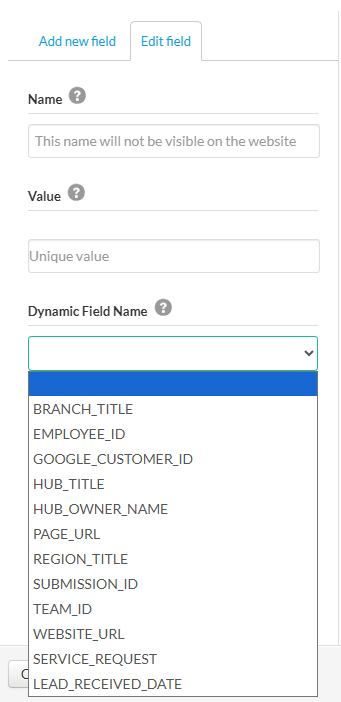
These fields can have specific parameters attached to them for reference or static values for example.
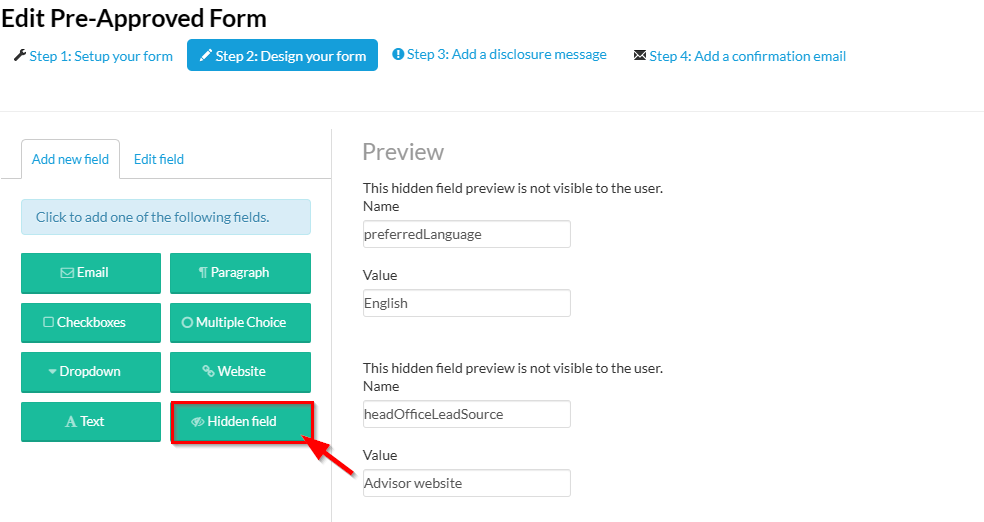
These fields will be used to add the attributes that would be passed over through the connection to the leads API. This will be a one to one match to the API and is a one time setup for Digital Agent.
Was this article helpful?
That’s Great!
Thank you for your feedback
Sorry! We couldn't be helpful
Thank you for your feedback
Feedback sent
We appreciate your effort and will try to fix the article